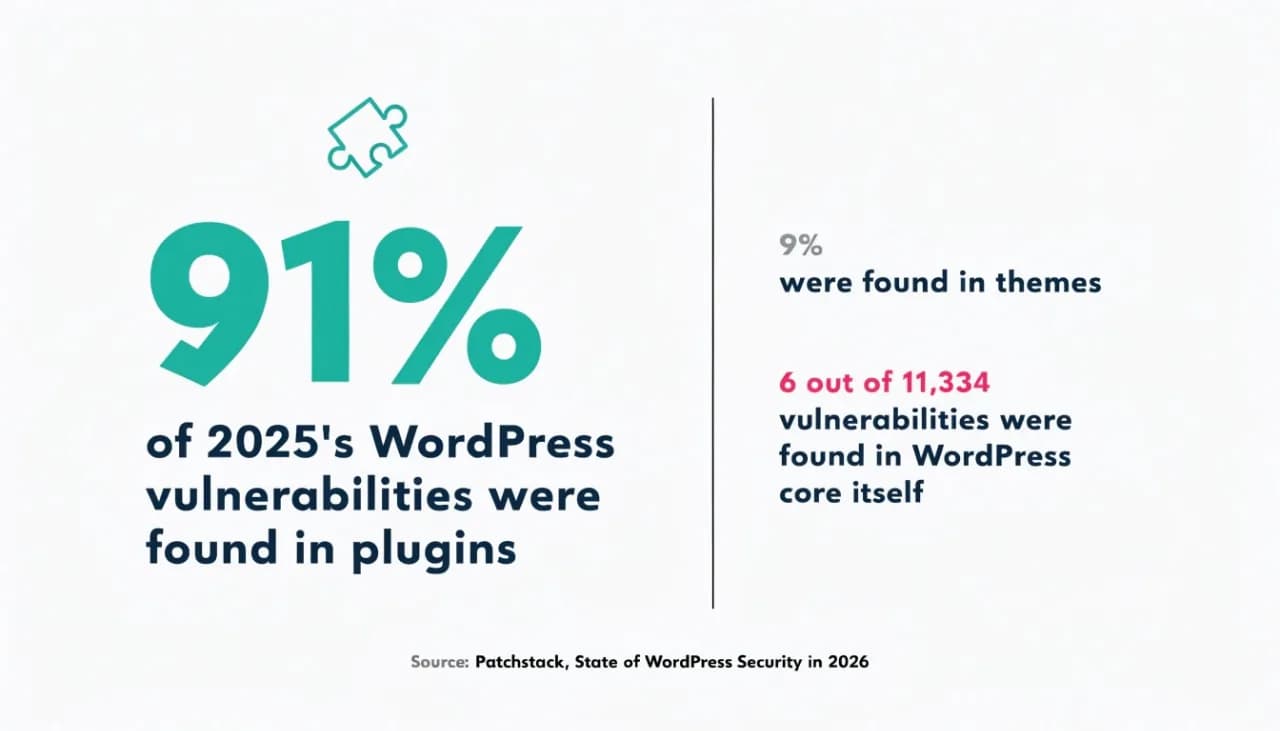
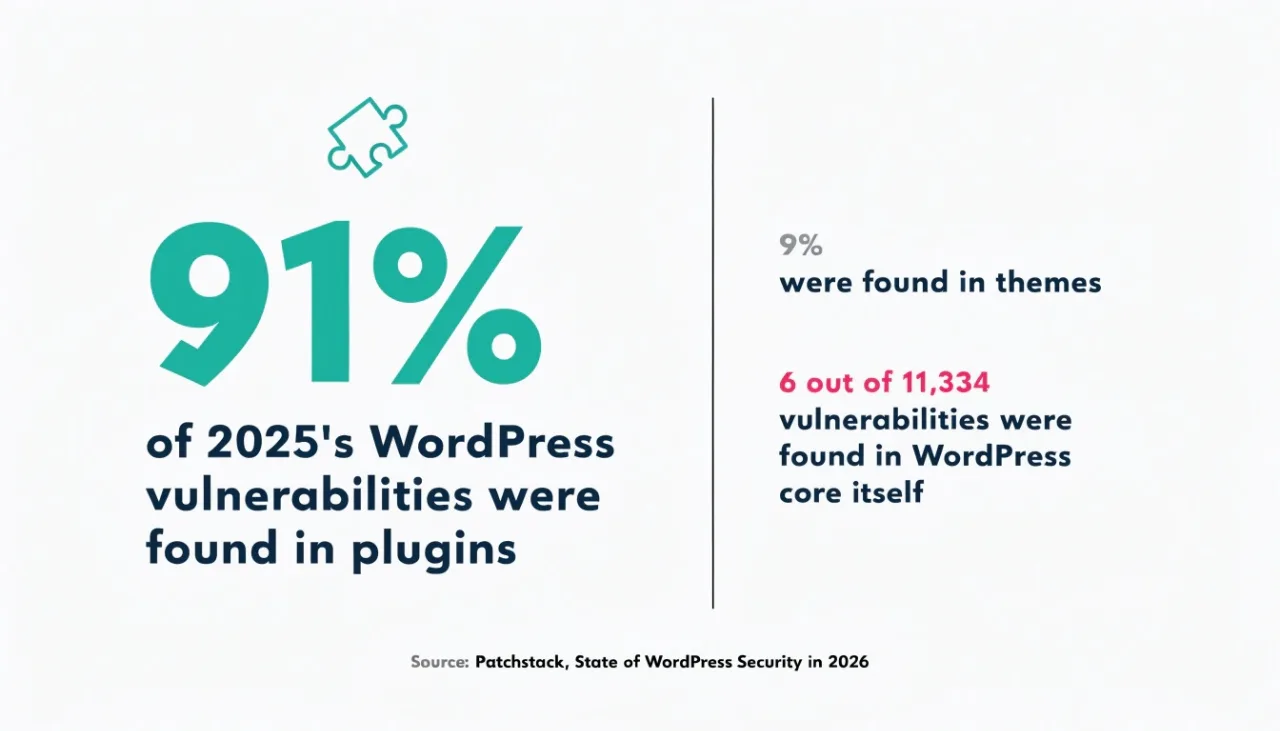
WordPress website management is website management applied to WordPress's specific layered structure: core software, a theme, and a stack of plugins. Each updates on its own schedule, and each is capable of breaking the others. 91% of vulnerabilities disclosed in the WordPress ecosystem in 2025 came from plugins, not WordPress core itself, according to Patchstack's State of WordPress Security in 2026 whitepaper. That single fact shapes almost everything about how WordPress management differs from managing a site on any other platform, across all 6 categories covered below.
This guide covers what makes WordPress management, sometimes searched as wordpress site management, different from managing a site on any other platform, and the tools built for it. It also covers the part most generic guides skip entirely: how to manage more than one WordPress site without logging into each one separately. That includes real, currently published pricing for the main multi-site dashboards, not vague feature comparisons alone.
How to Manage a WordPress Website
Managing a WordPress website comes down to six recurring jobs. Update core, theme and plugins on a schedule. Back up off-server and test a restore. Watch uptime and errors. Audit the plugin layer. Control user roles. Keep an eye on load speed. Do those six and almost everything else takes care of itself, whether you manage WordPress websites for clients or only your own.
The honest answer to how to manage WordPress well is that the order matters as much as the list. Here is the order we run them in, and why it changes once more than one site is involved.
- Update on a schedule, on staging first. Pick a day. Check the plugin changelogs, apply updates on a copy of the site, then push to live. The plugin layer is where 91% of 2025 vulnerabilities lived, so this job protects you most. It is also the one most likely to break something. That is why it runs on staging first.
- Back up off the server, and restore one. A backup sitting on the same server as the site is not a backup. Send it somewhere else, and actually restore one onto staging at least once. An untested backup is a guess, not a safety net.
- Watch uptime and errors. You want to hear the site is down from a monitor, not from a customer. Checks every five minutes are enough for most business sites. See WordPress uptime monitoring for how to set that up.
- Audit the plugin layer, and shrink it. Every plugin is code somebody else maintains. Once a quarter, list what is installed, delete what is deactivated, and replace anything abandoned. Fewer plugins means fewer update conflicts and a smaller attack surface.
- Control who can log in. Give each person the lowest role that does their job. Remove accounts when people leave. Keep the number of administrators small. Most WordPress hacks we clean up start with an account nobody remembered.
- Keep an eye on speed. Check Core Web Vitals after any big change. A plugin update can undo a fast site quietly. Our guide on speeding up a WordPress site covers what to do when it slips.
None of this needs an agency. It needs two to four hours a month, and somebody who does it on the months when nothing looks wrong. That is the part that slips. If that person does not exist, our website maintenance and support plans start at $99 a month and cover exactly these six jobs.
What Makes WordPress Management Different
WordPress is website management's hardest case, not because it is poorly built, but because of what it is built from. WordPress core, the theme, and every plugin are separate pieces of software from separate developers, all running on the same site at once. Each one gets updated independently. No developer tests their update against every possible combination of the others before release. That combination is different on every single WordPress site on the internet.
That structure is also WordPress's biggest strength. It is why a WordPress site can do almost anything, from a 5-page brochure site to a full marketplace, just by adding the right plugin. The tradeoff is that flexibility is also surface area. Wix and Squarespace are largely pre-built and locked down. Less can be added to them, so far less can conflict.
None of this makes WordPress a worse choice. It powers 40.7% of all websites precisely because that flexibility is genuinely valuable, according to W3Techs. It does mean "set it up and leave it" is a much riskier strategy on WordPress than on a more locked-down platform. That is exactly why WordPress-specific management exists as its own category of service, rather than being interchangeable with generic website upkeep.
WordPress.org vs WordPress.com: Why It Changes What "Management" Means
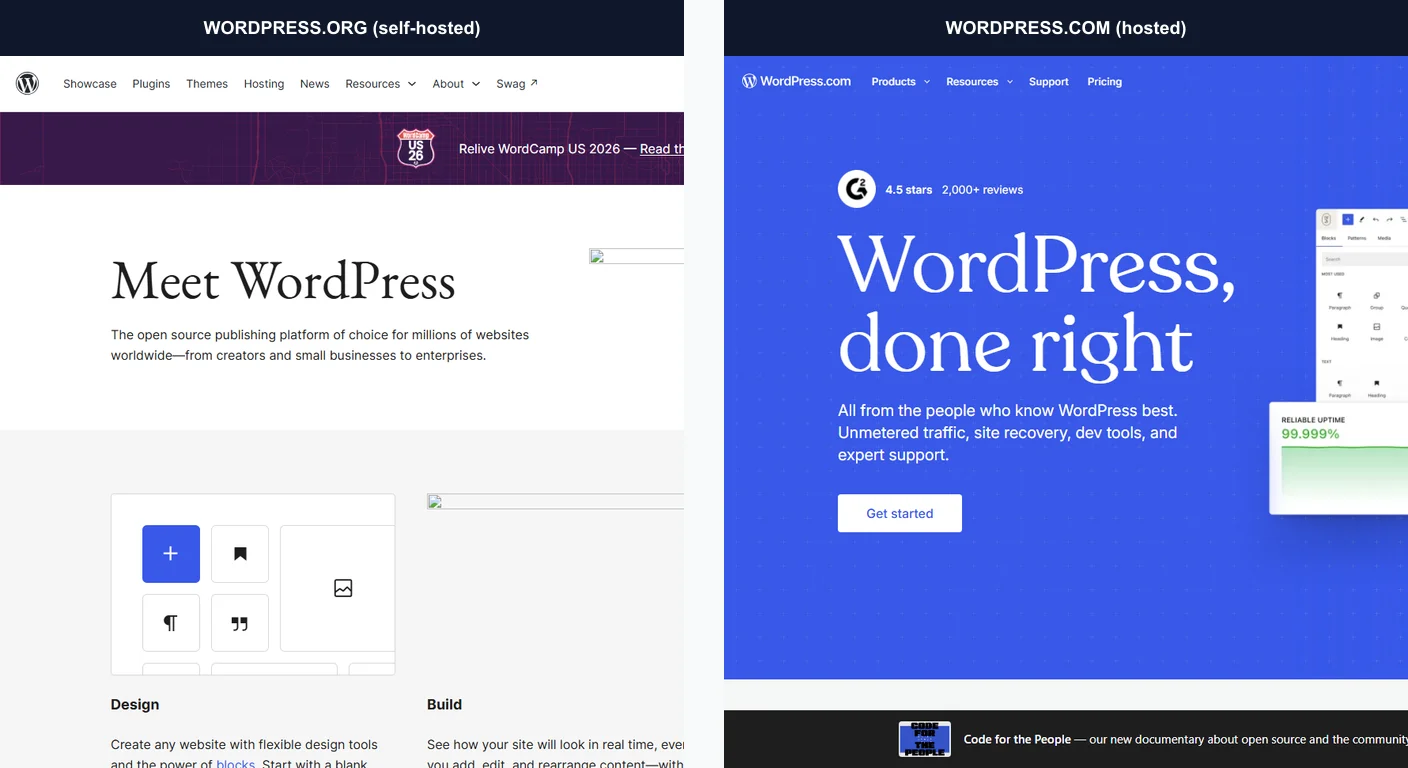
This distinction trips up more people than any other on this topic, and it changes what management involves. WordPress.org is the free, open-source software you self-host, on any host you choose. WordPress.com is a hosted service, run by Automattic, where the platform manages the server layer for you on a paid or free plan. When people search wordpress site management or shorthand it to wp management, they are almost always talking about a self-hosted WordPress.org site. That is the version where plugins, themes, and server configuration are entirely your responsibility to manage.
A self-hosted WordPress.org site can install any plugin or theme from anywhere. That freedom is the source of both its flexibility and the plugin-layer risk covered throughout this guide. WordPress.com restricts plugin installation on its lower tiers to avoid that exposure. This guide, and the tools covered in it, are written for self-hosted WordPress.org sites. That is what "WordPress management" means in practice for the overwhelming majority of businesses running WordPress.
WordPress Multisite vs a Multi-Site Management Tool: Not the Same Thing
These two get confused constantly, and they are not the same thing. WordPress Multisite is a built-in core feature. It turns one WordPress installation into a network of several sites sharing the same core files, themes, and plugin installs, all controlled from one super-admin account. A multi-site management tool is the MainWP/ManageWP/WP Umbrella category covered below, and it is a completely different thing. It connects separate, independent WordPress installations, each with its own database and its own hosting, together only through an external dashboard.
The distinction matters because they solve different problems. Multisite genuinely suits sites that should share the same theme and plugin set, like a network of near-identical location pages under one brand. It is the wrong tool when sites need to be independent: on different hosting, with different plugins, with different owners able to make their own changes. That describes the David Baxter example covered further down, and most real multi-client or multi-brand situations. A management dashboard, not Multisite, is the right tool for that case.
The Core Tasks, Applied to WordPress Specifically
WordPress management uses the same 6 categories covered in the general website management guide: content, updates, backups, security, uptime, and performance. What changes on WordPress is the risk sitting underneath each one. The plugin and theme layer this guide keeps returning to shapes almost every one of them differently than a more locked-down platform would.
Core, Theme, and Plugin Updates
WordPress core itself is remarkably stable. Patchstack's 2026 whitepaper recorded only 6 vulnerabilities in WordPress core for all of 2025, against 11,334 new vulnerabilities found across the entire WordPress ecosystem that year. Nearly every update risk sits in the plugin and theme layer, not the platform itself. The safer pattern applies here too: apply plugin and theme updates to a staging copy first, confirm nothing broke, then push live. Core updates are lower-risk and can usually be applied directly, though a staging check still catches the rare exception.
Backups
A WordPress backup needs to capture 2 separate things: the file system (themes, plugins, uploaded media, core files) and the database (every post, page, setting, and piece of content). Missing either half is not a complete backup. Only a restore-test can confirm both pieces came back together correctly.
Security Monitoring
91% of disclosed vulnerabilities live in plugins. A security tool that only checks WordPress core for problems is checking the wrong 9% most of the time. Patchstack's 2026 whitepaper also found that 46% of 2025's disclosed vulnerabilities had no developer fix available yet when they went public. 17% scored high severity, meaning automated mass-scale attacks were likely. A monthly manual check misses that entire window. A real WordPress security setup scans every installed plugin and theme against a current vulnerability database, not just the core install. It flags anything with a known, disclosed issue immediately, rather than on a monthly cycle.
Uptime and Performance
These work the same way as on any platform: continuous checks, an alert the moment something drops, and periodic speed and Core Web Vitals tracking. UptimeRobot's own free plan checks every 5 minutes, a real no-cost baseline for the "continuous" part. WordPress adds one specific risk here that other platforms do not carry to the same degree. A plugin conflict or a runaway database query can degrade performance gradually, the same slow drift covered in the general website management guide. On WordPress, that drift comes from plugin bloat accumulating over time, not neglect alone.
WordPress Core Update Settings: What the Defaults Actually Do
On most existing WordPress installs, core auto-updates minor releases by default and leaves major releases to a manual click, per WordPress's own upgrading documentation. Minor releases are the security and maintenance patches, the version numbers after the second decimal point. Major releases carry new features, the first decimal point, and require a site owner to click update unless that setting has been changed. This default split exists for a good reason. Minor releases are security and bug fixes, low risk to apply automatically. Major releases are more likely to change something a theme or plugin depends on.
Leaving that default in place is the right call for most sites. The mistake worth avoiding is the opposite one: turning off automatic minor updates because a past update once broke something. That usually means the actual problem was a plugin conflict, not the WordPress core update itself. Disabling core security patches to work around a plugin problem trades a small, fixable irritation for an ongoing, much larger risk.
User Roles and Permissions in WordPress
WordPress ships with 5 built-in roles. Using them correctly is one of the simplest, least technical parts of WordPress management, and one of the most commonly skipped.
WordPress's own roles and capabilities documentation defines exactly what each one can and cannot do.
- Administrator. Full control, including plugin and theme installation. Reserved for whoever is responsible for the technical side of the site, never handed out by default to everyone who needs to log in.
- Editor. Can publish and manage all posts and pages, including other people's, but cannot install plugins or change site-wide settings.
- Author. Can write and publish their own posts only.
- Contributor. Can write posts but cannot publish them without an editor's review first.
- Subscriber. Can log in and manage a profile, nothing else. Common for membership or comment-gated sites.
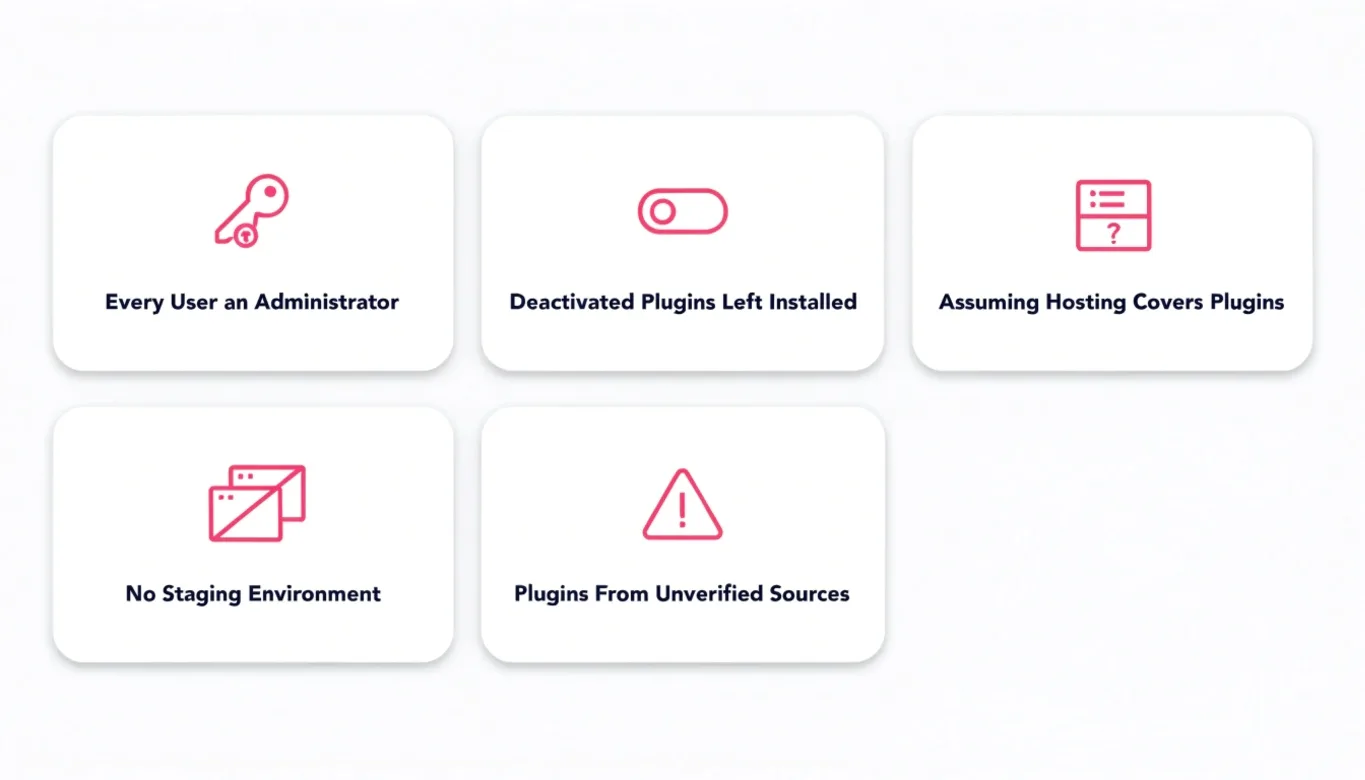
The common mistake is making everyone who needs any access at all an Administrator. It is the path of least friction in the moment. It also means a compromised password on any one of those accounts gives an attacker full control of the site, not just the specific access that person needed.
Nulled and Pirated Plugins: A Real, Avoidable Risk
A premium plugin found for free on a site that is not the original developer's is almost always a "nulled" copy. The license check is stripped out, frequently with something else added in its place. Security vendors, including Sucuri's own security research, consistently trace a meaningful share of the WordPress compromises they clean up back to exactly this single decision. A nulled plugin is not a discount version of the real thing. It is unmonitored and unpatched by the original developer forever. It is frequently modified to include a backdoor before it was ever uploaded to the site advertising it as free.
This is squarely a WordPress management issue, not just a purchasing decision, since a management plan needs to check what is installed. A nulled plugin looks identical to the real one in the plugins list. The only reliable way to catch one is knowing exactly what should be installed, then verifying every plugin's source. That check is part of what an initial site audit is for when taking over management of an existing site.
Common WordPress Management Mistakes
A few patterns show up repeatedly across WordPress sites that were technically "being managed" and still ran into a preventable problem.
- Treating every user as an Administrator instead of matching the role to what the person needs to do, covered above.
- Keeping "just in case" plugins installed but deactivated. A deactivated plugin can still carry a vulnerability, and it is one more thing an update check has to account for. If it is not being used, the safer move is removing it entirely, not just switching it off.
- Assuming managed hosting covers plugin updates. Covered above: hosting protects the server. It rarely takes responsibility for the plugin and theme layer where 91% of 2025's disclosed vulnerabilities lived.
- No staging environment for a site that needs one. A site with custom functionality, a booking flow, or an ecommerce checkout carries real risk from applying updates directly to the live site. A small brochure site carries much less.
- Installing a plugin from anywhere other than WordPress.org, a verified marketplace, or the developer's own site directly. The nulled-plugin risk above applies broadly to any plugin sourced outside a legitimate channel, not just ones explicitly advertised as cracked or nulled. WordPress's own hardening guide gives the same advice: restrict yourself to the WordPress.org repository or well-known companies.
WordPress Management Tools and Software for a Single Site
A real WordPress management setup for one site is built from a handful of specific plugin categories, each covering one of the tasks above.
| Category | What it does | Examples |
|---|---|---|
| Security | Malware scanning, firewall, login protection, vulnerability alerts. | Wordfence, Sucuri, iThemes Security (SolidWP). |
| Backups | Automated file + database backup, off-server storage. | UpdraftPlus, Jetpack VaultPress, Duplicator. |
| Performance / caching | Page caching, image optimization, database cleanup. | WP Rocket, W3 Total Cache, ShortPixel, Smush. |
| Staging | A safe copy of the site to test updates before going live. | WP Staging, host-native staging (most managed hosts include one). |
| SEO | Meta tags, sitemaps, schema, on-page checks. | Yoast SEO, Rank Math. |
| Uptime | External monitoring, alerts the moment the site drops. | UptimeRobot, Pingdom, StatusCake |
This is what "WordPress management software" usually refers to when the search is about a single site. It is a different set of wordpress management tools than what "manage multiple WordPress sites" is asking for, covered next.
WordPress Maintenance Tool vs WordPress Management Tool: Is There a Difference?
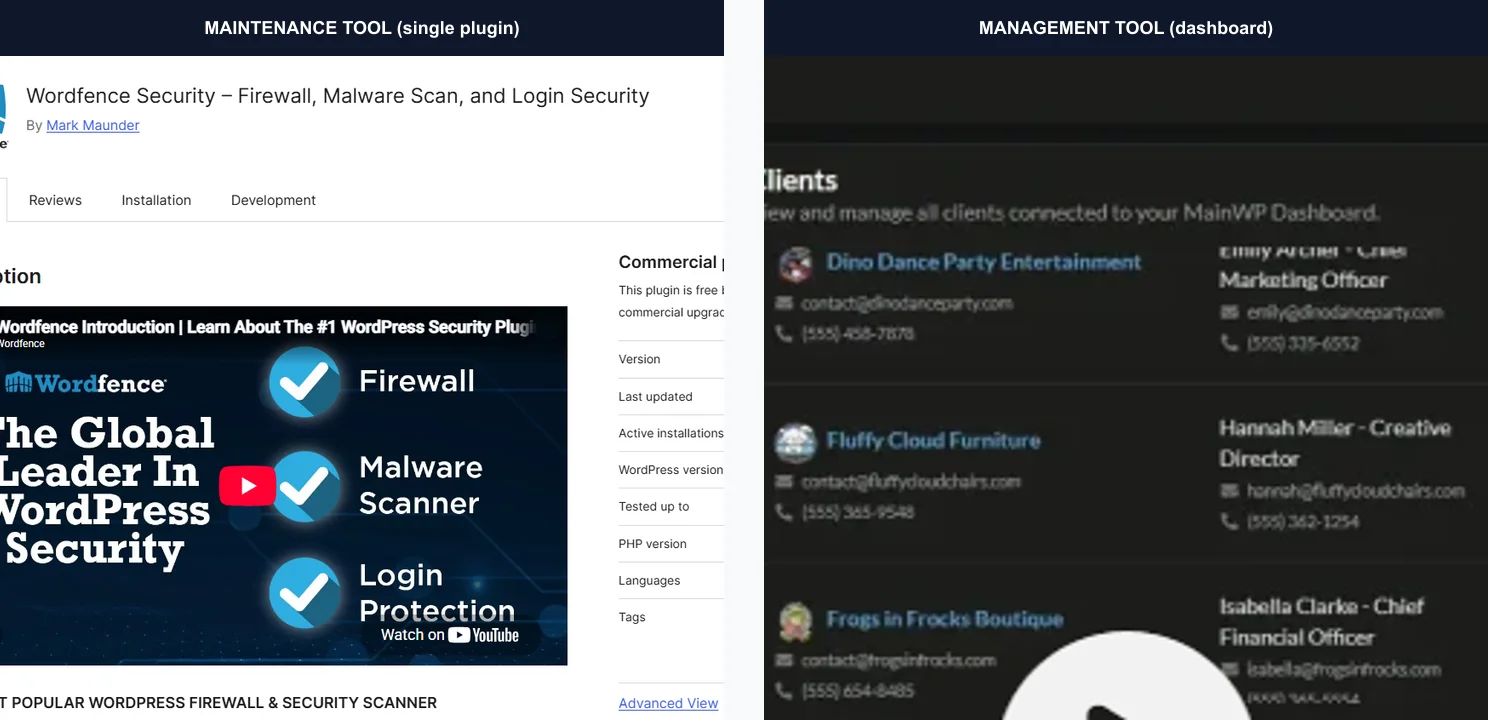
Yes, and it is worth being precise about it. A wordpress maintenance tool is typically single-purpose: a backup plugin, a security scanner, a caching plugin, each handling one job on one site. A WordPress management tool is broader. It might be an all-in-one single-site plugin bundling several jobs together. Or it might be a multi-site dashboard, like the ones in the comparison table above, that oversees several installs at once. "Maintenance" tends to describe the individual task-level plugins. "Management" tends to describe the coordinating layer sitting above them, whether that layer is a person, a dashboard, or both.
In practice the terms get used interchangeably outside of strict definitions like this one. A real plan uses both: task-level maintenance tools doing the actual work of scanning, backing up, and caching, coordinated through a management layer. That layer confirms all of it happened on schedule, across however many sites there are to check.
Managing Multiple WordPress Sites From One Dashboard
Manage multiple WordPress sites is a different problem than managing one well. Logging into 5, 20, or 100 separate wp-admin dashboards to check for updates does not scale. Agencies, freelancers, and any business running more than one WordPress property run into this almost immediately. That could mean a main site plus a blog, a client-facing site plus an internal one, or separate sites for separate brands. A dedicated WordPress management tool solves this by connecting every site to one central dashboard.
Self-Hosted vs SaaS: Two Different Kinds of Dashboard
These tools fall into 2 structurally different categories, and the difference matters more than any individual feature comparison.
- Self-hosted dashboards. You install the dashboard plugin on your own WordPress hosting, and it manages the other sites remotely from there. Nothing runs through the tool vendor's own servers.
- SaaS dashboards. The vendor hosts the dashboard, and you log into their platform to manage every connected site. Faster to set up, but your site data and access credentials pass through a third party's infrastructure.
In practice, the difference shows up clearest in a single routine task: applying a plugin update across every managed site. Without a dashboard, that means logging into each wp-admin separately, one at a time, checking pending updates, applying them, and confirming nothing broke. With a dashboard, the same task is one screen showing every connected site's pending updates at once. It applies in bulk with a single confirmation, and flags an individual site only if its update fails. That is the entire value proposition in one workflow: the 6 management categories do not change, only how many times a person has to repeat the same click.
Real Multi-Site Tool Pricing
Real, currently published pricing for the 4 main multi-site tools ranges from free to roughly $2.19 per site a month, checked directly against each vendor's own pricing page.
| Tool | Type | Price | Notes |
|---|---|---|---|
| MainWP | Self-hosted | Free core, or $29/mo (Pro, unlimited sites) | Open source; you host the dashboard yourself. |
| ManageWP | SaaS | Free for unlimited sites; add-ons $1–$2/site/mo | Owned by GoDaddy; core features free, premium add-ons billed per site. |
| WP Umbrella | SaaS | ~$2.19/site/mo, all-inclusive | Single flat tier, no feature gating. |
| Jetpack Manage | SaaS | Varies by connected Jetpack plan | Built on the widely installed Jetpack plugin. |
MainWP's free-and-open-source, self-hosted model suits anyone who wants full control and does not mind hosting the dashboard themselves, with no per-site fee regardless of how many sites are connected. ManageWP's free tier covers the basics on unlimited sites, with premium features like automated backups and vulnerability protection billed per site once you need them. WP Umbrella's single flat price with everything included suits agencies that want predictable billing without tracking which features are and are not turned on per client.
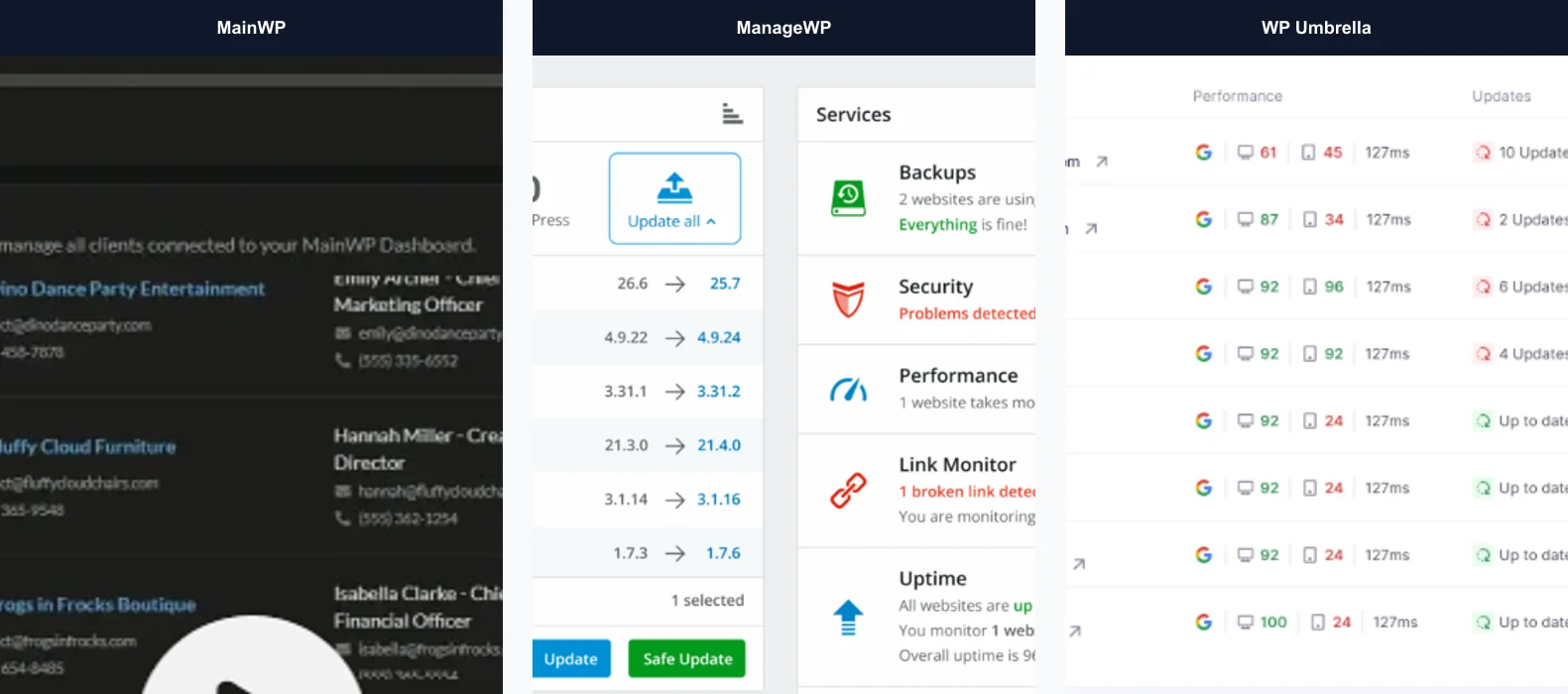
A Real Example: Managing Two Separate Sites for One Client
This is not a hypothetical scenario. We maintain David Baxter's speaker site and his separate author site for his book The Uncommon Leader. That is 2 independent WordPress installs for the same client, built for 2 different audiences and updated on 2 different schedules. Treating them as one combined relationship, rather than 2 disconnected accounts, is exactly what a multi-site management setup is for. It gives 1 point of contact and 1 place to confirm both sites are current, instead of the client wondering whether "the site" being maintained means one of theirs or both.
Choosing Between a Self-Hosted and a SaaS Multi-Site Dashboard
Beyond price, 3 practical questions settle most of this decision.
- Who is comfortable hosting the dashboard itself? A self-hosted option like MainWP means one more WordPress install to keep secure and backed up in its own right. That is a real responsibility, not a free lunch. A SaaS dashboard removes it entirely, at the cost of routing every connected site's data through a third party.
- How many sites, and how fast is that number likely to grow? MainWP's flat pricing regardless of site count favors an agency expecting to keep adding clients. A per-site SaaS model can get expensive fast at real scale. It stays cheap for a small, stable number of sites.
- Does client-facing reporting matter? Clients often expect a branded, polished monthly report. A SaaS platform with built-in white-label reporting, which most of the options above include on a paid tier, saves real time over building that manually.
There is no universally correct answer here. The honest version of this advice: the self-hosted vs SaaS decision matters more than which specific tool gets chosen within either category. Tools within each category converge on very similar feature sets.
Real Scenarios Where the Decision Resolves Fast
A few concrete scenarios tend to resolve this fast. A solo freelancer with 4 client sites and a comfortable technical background is usually well served by MainWP's free core: no per-site fee ever, full control over the dashboard. 20 sites across several clients who each expect a polished monthly report is a different case. That scale usually favors a SaaS platform with white-label reporting built in, since building that reporting manually costs more time than the per-site fee. Managing just 2 or 3 of a business's own properties, like the David Baxter example above, often does not need a dedicated dashboard at all in the early stages. It just needs whoever manages them doing so on an actual schedule, rather than an ad hoc one.
When You Actually Need a WP Site Manager
Not every business running more than one WordPress site needs a dedicated dashboard. A wp site manager setup starts earning its cost around 3 connected sites for most freelancers and small agencies. That is roughly where manually checking each wp-admin dashboard separately starts eating an inconvenient amount of time every week. Below that, the free tier of a tool like ManageWP is often enough, without needing to formalize anything further. A business that needs to manage multiple WordPress websites across separate brands, rather than just a main site and a blog, usually crosses that line sooner. Separate brands tend to mean separate plugin stacks and separate update schedules to track.
The signal to watch for is not the raw number of sites. It is whether checking them has started to feel like a task you postpone. The same warning sign covered in the general website management guide applies here, specifically to the multi-site case. Updates across several WordPress installs getting checked in a rush, right before something is needed instead of on an actual schedule, is the point a dedicated dashboard earns its keep. Waiting past that point does not usually cause an immediate failure. One of those sites just falls far enough behind that catching it up becomes a bigger job than it would have been 3 months earlier.
Managed WordPress Hosting vs WordPress Management: Not the Same Thing
These two get confused constantly, and the confusion causes real gaps in coverage. Managed WordPress hosting is the tier of hosting built specifically around WordPress. It typically covers server-level security, automatic core updates, server-side caching, SSL, and a built-in staging environment. What it typically does not cover: plugin and theme updates, content changes, and fixing a plugin conflict when one breaks something. It also usually skips malware cleanup at the application level, and SEO or performance work beyond what the server layer controls.
Managed hosting is the foundation. WordPress management is everything that happens on top of that foundation. A site can be on excellent managed hosting and still be poorly managed. Hosting protects the server the site runs on, not the plugins, content, and configuration running on it.
The clearest way to tell the two apart in practice: ask what happens when a specific plugin update conflicts with the theme and breaks a page. Managed hosting support will confirm the server itself is healthy and the site is technically online, correctly, since that is what they are responsible for. Diagnosing and fixing the actual conflict, tracing it through the plugin settings, the theme's code, and whatever custom styling sits on top, is application-layer WordPress management. It is a different job, with a different skill set, from server administration. That distinction also matters when moving hosts: see how to move WordPress to a new host without downtime or data loss for what the host actually controls versus what management still has to cover afterward.
WordPress Management for WooCommerce Sites
WooCommerce adds a layer neither a brochure site nor most other CMS platforms carry: apps and extensions that touch checkout and payment flows directly, not just the pages a visitor browses. A plugin update that breaks a decorative element on a normal page is an inconvenience. The same kind of update breaking the checkout on a store is lost revenue, immediately and measurably, for every minute it stays broken. If you are still deciding between WooCommerce and a hosted platform like Shopify before management even becomes a question, see WordPress vs Shopify: which platform is right for your business.
Management for a WooCommerce site needs to monitor checkout and order-level activity, not just malware on the file system. Fraudulent order attempts and injection through checkout fields are a distinct risk category from the general plugin vulnerabilities covered throughout this guide. Staging matters more here too. Testing an update against a copy of the store, including a real test transaction, is worth the extra step before anything touches the live checkout.
Payment gateway plugins and shipping or tax extensions deserve slower, more cautious update handling than a typical content plugin. A silent failure in either one does not throw an obvious error message. It just quietly stops processing orders correctly until someone notices a specific transaction went wrong.
What a Monthly WordPress Management Report Should Actually Include
"You get a monthly report" is a common line in a management plan's marketing copy. Asking to see a sample before signing up is worth doing, since what different companies deliver varies enormously. A report worth reading covers:
- Every core, theme, and plugin update applied that month, with version numbers.
- The result of the month's security scans, clean or otherwise.
- Confirmation the last backup was restore-tested, not just taken.
- Current uptime percentage.
- Any issue that came up, what caused it, and how it was resolved.
A report that only says "everything is up to date" without any of the specifics above is not meaningfully different from no report at all. It confirms nothing a site owner could not have simply been told over a 2-line email. That is one of the clearest signals, alongside the warning signs covered in the general website management guide, that a plan may be billed but not delivered in full.
What Actually Breaks: Plugin and Theme Conflicts in Practice
This is not theoretical. On CascadiaSTR's short-term rental site, a post-update check on the booking flow found a real problem: some Gutenberg block elements were not behaving as expected on the frontend after a routine update. We traced the affected block markup and styling, adjusted it, and retested the full booking flow on both desktop and mobile before signing off. For a short-term rental site, a booking flow that quietly breaks is close to the worst possible failure. It is exactly the kind of plugin-layer issue that a core-only security check would never have caught, since nothing was wrong with WordPress core at all.
Image and asset sizes on the same site were also reviewed and optimized separately, since a slow-loading gallery is exactly what a booking-driven site can least afford. Both fixes sit squarely in the plugin and performance layers this guide has been pointing at, not in WordPress core.
The general pattern behind incidents like this one: a plugin or theme update passes its own internal testing fine. The developer tested it against a clean install with a small, standard set of other plugins. It then reaches a live site running a completely different combination, built up over months or years. Something in that specific combination breaks. No amount of the original developer's own testing can rule this out in advance, since the number of possible plugin combinations across the WordPress ecosystem is effectively unlimited. Catching it before a visitor does is what a staging check is actually for. When a conflict is severe enough to whiteout the entire site instead of just one block, see how to fix the WordPress critical error for the recovery steps.
WordPress Management Software: Free vs Paid
Every category in the single-site tool table above has a usable free tier. Wordfence's free version covers firewall and malware scanning. UpdraftPlus's free version handles scheduled backups. Paid tiers generally add: real-time rather than scheduled scanning, automated off-server storage instead of manual, one-click restores, and priority support when something needs fixing urgently rather than a community forum.
For multi-site tools specifically, the free vs paid line is different. MainWP's core is free and open source, regardless of how many sites are connected. ManageWP and WP Umbrella both use a freemium or per-site model instead. The free tier is real, but premium features become available for a per-site fee as the number of managed sites grows. The right choice depends more on whether self-hosting a dashboard is acceptable than on price alone.
Who Handles WordPress Management
4 distinct types of company offer this. Knowing which one you are talking to sets the right expectation for scope.
- Managed hosting companies handle the server layer, covered above. They increasingly bundle a basic version of application-layer management, though usually shallower than a dedicated plan.
- Dedicated maintenance agencies focus on updates, backups, and security. That often runs cheaper than a full-service agency, since they are not also pricing in design or development capacity.
- Full-service web agencies handle management alongside development, design, and strategy under one relationship. This guide's own examples, Falcon Ridge, CascadiaSTR, and David Baxter's 2 sites, all fall under this model.
- Freelancers handle smaller sites at a lower cost. The tradeoff is a single point of failure if that one person is unavailable when something breaks.
None of these is automatically the right choice. A larger business running several WordPress properties usually has more to gain from a full-service agency's continuity. A freelancer's lower price often means managing each site as a separate, disconnected relationship instead. One question is worth asking any of the 4 types before signing anything, the same one covered in the general website management guide. Look for a real published price and a specific response time in writing. Look for a named point of contact who already knows the site, rather than a rotating queue that resets who you are talking to every time.
Bringing an Existing WordPress Site Into a Management Plan
Most WordPress sites that need management were not built by whoever is now going to manage them. Bringing an existing site under a real plan for the first time has a specific order worth following, rather than jumping straight into ongoing monitoring.
- Inventory everything installed first. Every plugin and theme, active or not, checked against WordPress.org, a verified marketplace, or the developer's own site to confirm it is a legitimate, currently supported copy rather than an abandoned or nulled one.
- Confirm who currently has access. Admin accounts especially, since an inherited site frequently carries logins for a past developer, a past employee, or an agency the relationship has already ended with.
- Take a full backup before touching anything. The starting point needs to be recoverable even if the very first update applied afterward causes a problem.
- Fix known issues before turning on ongoing monitoring. Monitoring a site that already has an unpatched vulnerability just means watching a known problem instead of fixing it. Clean the baseline first.
- Then, and only then, connect it to whatever ongoing schedule and tooling the management plan runs on, whether that is a single-site setup or one more site added to an existing multi-site dashboard.
Skipping straight to step 5 without the first 4 is how a management plan ends up protecting a baseline that already had problems quietly sitting in it.
WordPress Task Frequency: A Realistic Schedule
The general task-frequency schedule in the website management guide applies here with WordPress-specific detail filled in.
| Frequency | WordPress-specific tasks |
|---|---|
| Continuous (automated) | Uptime checks, plugin and theme vulnerability scanning, off-server backups. |
| Weekly | Check pending core, theme, and plugin updates; skim security alerts. |
| Monthly | Apply and stage-test updates, review the plugin list for anything abandoned or unused, compile the management report. |
| Quarterly | Restore-test a backup, review user roles and admin access, full performance and database check. |
| Annually | Full security audit, confirm every installed plugin's source is still legitimate and supported. |
What WordPress Management Costs
Whether it gets called wp management or the full phrase, our own care plans run $99 to $399 a month. Every tier covers core, theme, and plugin updates, backups, security monitoring, and uptime checks. That is true whether the client has one WordPress site or several. What changes between tiers is response speed and how many hours of hands-on content work are bundled in. The full breakdown of what should be included at each price point is on our WordPress care plans guide. A closer look at the day-to-day task list itself is in our WordPress maintenance breakdown.
How We Handle WordPress Website Management
Every plan starts with a full audit of the existing install. That covers every active plugin and theme, whether any are abandoned or unsupported, current login access, and whether the last backup has been restore-tested. Updates move to a staging copy first, wherever the plugin or theme change carries real risk. Core updates apply more directly, since Patchstack's own numbers show how rarely core itself is the problem. Critical security patches move inside a 48 hour SLA from disclosure. Clients who need to manage multiple WordPress websites with us, like David Baxter's 2 sites above, get both installs tracked from the same relationship. Neither is treated as an unconnected account that just happens to share a contact.
Two-factor authentication is enabled on every admin and editor login across every plan. It closes off one of the most common ways a WordPress account gets taken over. None of this changes based on which of the 3 pricing tiers a site is on. What changes is response speed and how many hours of hands-on work are bundled in.
WordPress's plugin layer is what makes it powerful. It is also the layer that has to be watched, tested, and kept current, month after month, on every site running it. That is true whether it is one install or several managed from a single dashboard. This is what real WordPress website management is: none of the individual pieces are complicated, but doing all of them, consistently, on every connected site, is the part that takes the work.