Website management is the ongoing work of keeping a live site secure, current, and functional after launch. That means applying software updates, taking backups, watching for downtime and security threats, updating content, and tracking performance and SEO. A site does not manage itself once it goes live. Skipping any single one of these tasks rarely breaks anything the same day. The risk just sits there quietly until something forces the issue.
Most pages that rank for this term either give a vague definition or turn into a sales pitch halfway through. This guide is different. It covers the full breakdown of what website management involves, a real tool stack for each part, and a schedule for how often each task should happen. It also covers the signs that tell you when doing it yourself has stopped working.
What Website Management Actually Covers
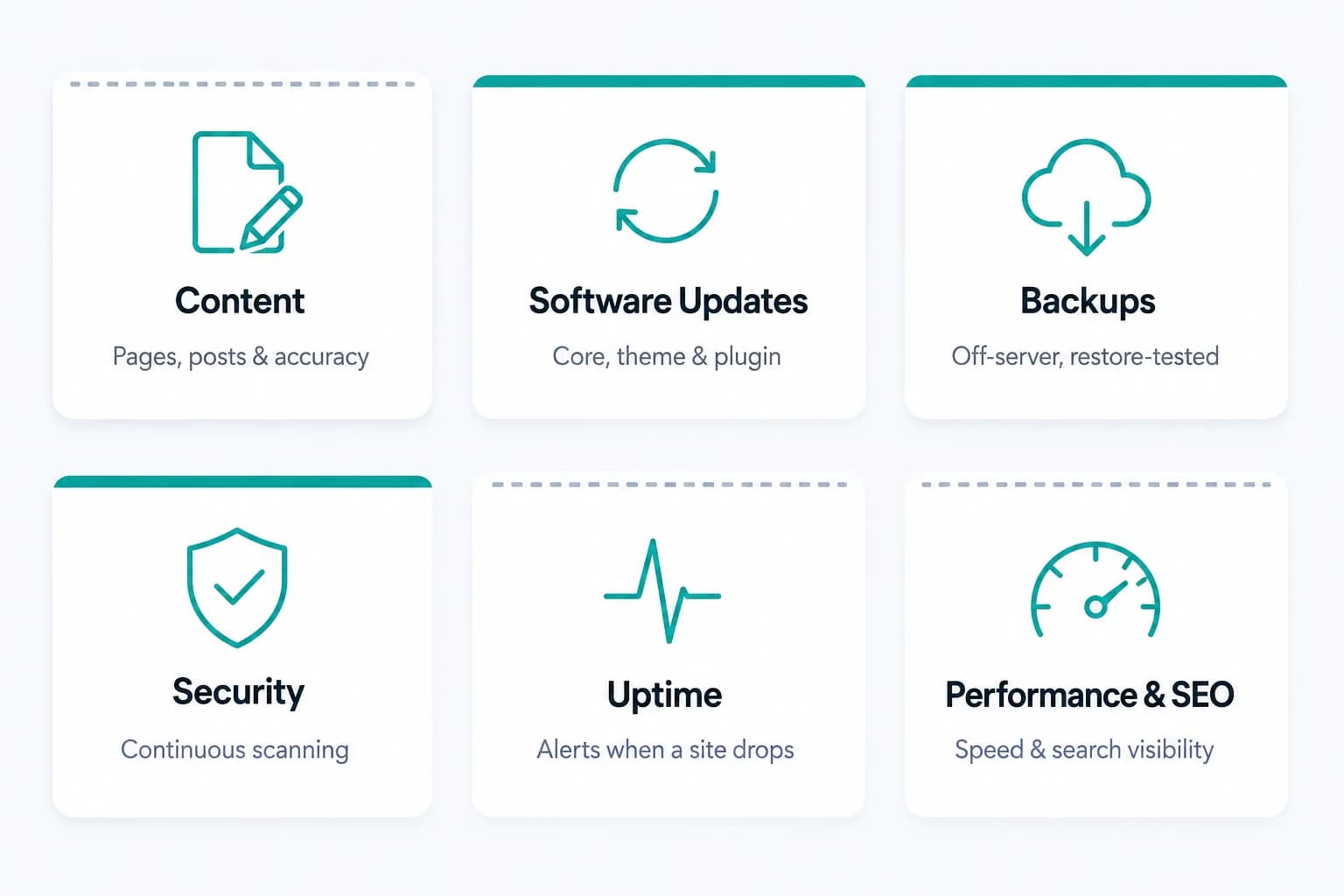
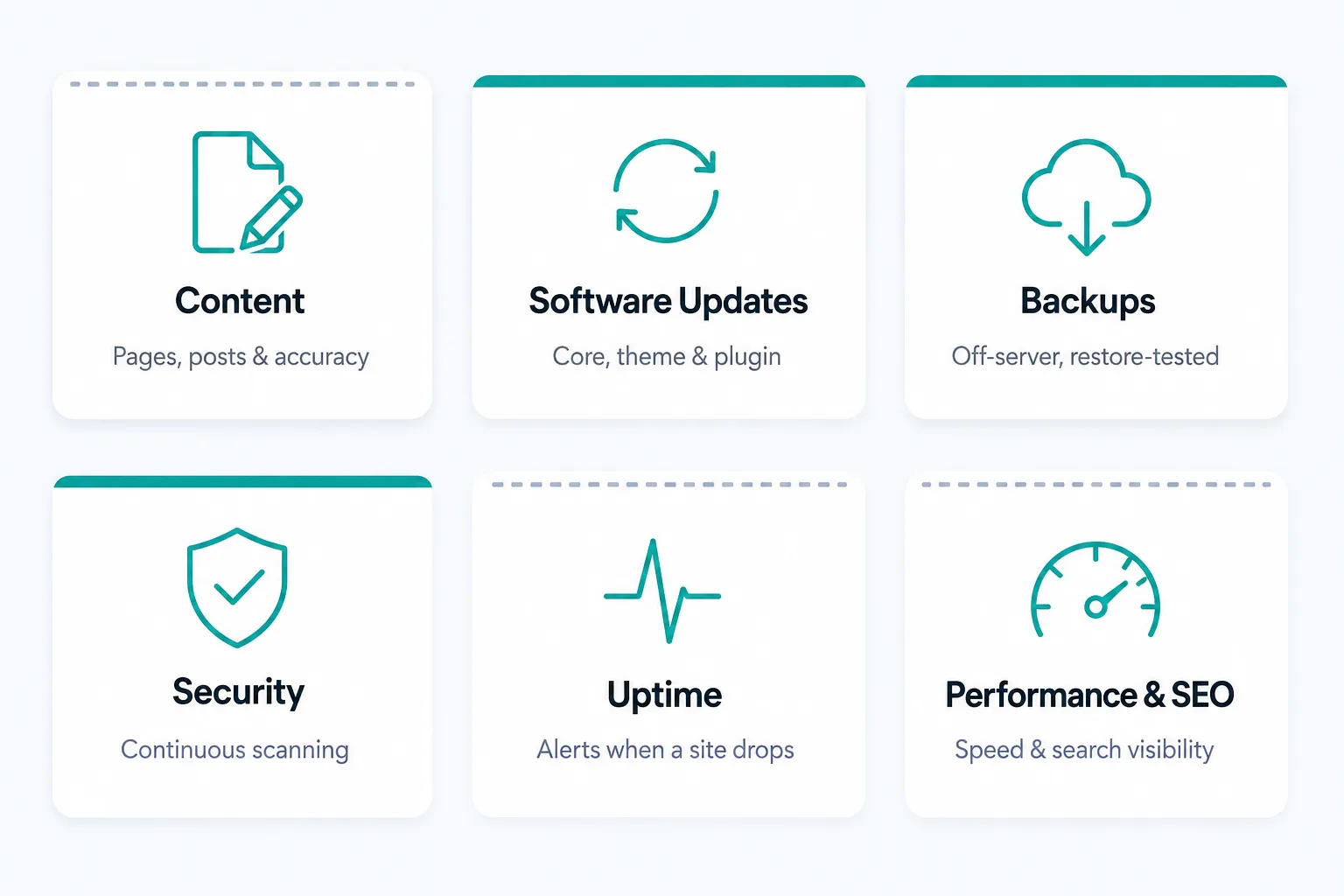
Strip away the marketing language and website management breaks into 6 categories. Every legitimate plan is really just these 6 jobs done consistently. That is true whether it is a person on staff, a freelancer, an agency, or you handling it yourself.
- Content management. Publishing, editing, and removing pages and posts so the site stays accurate.
- Software updates. Core platform, themes or templates, plugins or apps, and any custom code, kept current and tested before going live.
- Backups. Taken automatically, stored somewhere other than the live server, and actually restore-tested rather than just taken and left untouched.
- Security monitoring. Continuous scanning for malware and known vulnerabilities, plus a plan for what happens if something is found.
- Uptime monitoring. Something checking whether the site is actually live and alerting a person the moment it is not. UptimeRobot's own free plan checks every 5 minutes across up to 50 monitors, which is a real, no-cost baseline, not a reason to skip this category.
- Performance and SEO. Page speed, Core Web Vitals, and search visibility checked on a schedule, not left to drift.
The first 4 are the technical floor. A site can survive without the last 2 being actively managed for a while. It cannot survive updates, backups, and security being ignored for long before something goes wrong.
Content Management: Keeping the Site Accurate
This is the most visible part and the one most site owners already do without thinking of it as "management": updating a price, swapping an image, publishing a new page, or taking down an old promotion. It also needs a real content calendar, or at least a recurring reminder. Outdated content, an old phone number, a discontinued service still listed, a broken internal link, is one of the fastest ways a site quietly stops representing the business accurately.
A few specific things are worth a recurring check, rather than a one-time setup:
- Business hours and holiday closures.
- Staff or team bios after someone leaves.
- Pricing that changed somewhere else but not on the site.
- Seasonal promotions left live past their end date.
- Any page referencing a product or service the business no longer offers.
None of these break the site technically. Each one quietly tells a visitor the site is not being looked after, which is its own kind of trust problem.
A broken internal link or an orphaned page rarely gets reported by a visitor. They just leave. The only way to catch these before a customer does is to check for them on a schedule rather than waiting for someone to mention it.
Software Updates, Backups, Security, and Uptime
This is the part of website management that generic overviews tend to skip past, and it is the part that actually protects everything else. Each one on its own is a small, routine task. Together, skipped consistently, they are how a healthy site turns into a hacked or offline one. If your site runs WordPress specifically, see what WordPress maintenance actually involves for the platform-specific detail this section only summarizes.
Software Updates
Every platform runs on layers of software: a core system, a theme or template, and a set of plugins or apps on top. Each layer gets updated on its own schedule, and updates occasionally conflict with each other. The safer pattern is to apply updates to a staging copy first, confirm nothing broke, then push to the live site. Skipping this step is how a routine update turns into an emergency fix.
"Turn on auto-update for everything" sounds like the simplest fix. It is not safe on its own. 2 plugins that worked together fine can conflict the moment one of them updates. An automatic update applied straight to the live site means that conflict shows up in front of visitors, instead of on a staging copy where it is safe to catch. Auto- updates are reasonable for well-established, actively maintained software with a track record. They are a real risk for anything custom, anything with a history of breaking changes, or anything touching checkout or booking flows directly.
Backups
A backup that has never been restored is a hope, not a safety net. Automated daily backups stored off the live server are the baseline, matching the 3-2-1 backup rule CISA recommends: 3 copies, on 2 different types of storage, with 1 kept offsite. Most DIY setups skip the part that matters most: testing a restore every so often. A backup job can fail silently for weeks before anyone notices, usually right when it is needed most.
Security Monitoring
Most attacks against small business sites are automated bots. They scan for known, published vulnerabilities in outdated software, not a specific business. Verizon's 2026 Data Breach Investigations Report found that vulnerability exploitation now starts 31% of all breaches, the first time in the report's 19-year history it has overtaken stolen credentials as the top entry point. Continuous scanning catches an infection early, when cleanup is a small job. A monthly manual glance catches it weeks later, when cleanup is a much bigger job and search engines may have already flagged the site as unsafe.
Uptime Monitoring
A site that goes down and nobody notices for hours is losing leads the entire time. A free or low-cost uptime checker closes that gap: it pings the site every few minutes and alerts a person immediately. Without one, the first sign of an outage is usually a customer mentioning it. Sometimes there is no sign at all, because that customer just went to a competitor instead. For planned downtime specifically, Google's own guidance recommends returning a 503 status with a retry-after header, rather than letting Googlebot hit an unexplained outage.
Common Website Management Mistakes
A few mistakes show up repeatedly across sites that were technically "being managed" and still ran into trouble. None of them require negligence, just a gap that nobody caught in time.
- Treating a backup as done once it is taken. A backup job can fail silently for weeks. The only way to know it actually works is to restore it, at least occasionally, before an emergency forces the question.
- Updating everything at once, right before something important. Batching months of postponed updates into a single session is risky on its own. Applying all of them the day before a launch or a busy season is how one conflict turns into several, at the worst possible time. Smaller, more frequent updates are safer than large, infrequent ones.
- No one person owns each category. "Someone should check that" is not a plan. Each of the 6 categories needs one owner, even if that owner is the site owner themselves.
- Confusing "the site looks fine" with "the site is secure." Malware and vulnerabilities are frequently invisible to a normal visitor. Sometimes they stay invisible to the site owner too, until search engines flag the site or a scan specifically checks for them. Looking fine and being secure are 2 different claims.
- No documentation of what changed or when. A monthly log, even a short one, changes everything. It turns "did we fix that already?" into a 5-second lookup, instead of a guessing game 6 months later.
Access and Login Security: The Category Most Guides Skip
Nearly every overview of website management stops at the first 4 categories: software, backups, security, and monitoring. It rarely covers who actually has a login, which is its own security category and one of the most preventable ways a site gets compromised. According to Verizon's 2025 Data Breach Investigations Report, stolen or guessed credentials were involved in 88% of basic web application attacks. A strong password policy on the site's own software does nothing on its own. An old freelancer's login that was never removed, or three people sharing one admin account, undoes it just as easily.
- One login per person, never shared. A shared account makes it impossible to know who made a change. It also makes it impossible to know whether a leaked password belongs to someone who left the project a year ago.
- Two-factor authentication on every admin and editor account. It adds roughly 10 seconds to a login and closes off one of the most common ways an account actually gets taken over. According to Microsoft's own security research, accounts with any form of MFA enabled are compromised at a rate below 0.1%.
- Offboarding is part of website management, not an afterthought. When an employee, freelancer, or agency relationship ends, removing their access the same day matters as much as removing their name from an email list.
- Review the access list on a schedule, not just when something feels off. A quarterly check of who has a login and what role they hold catches accounts that should have been removed months ago.
Website Management Tools: What to Use for Each Category
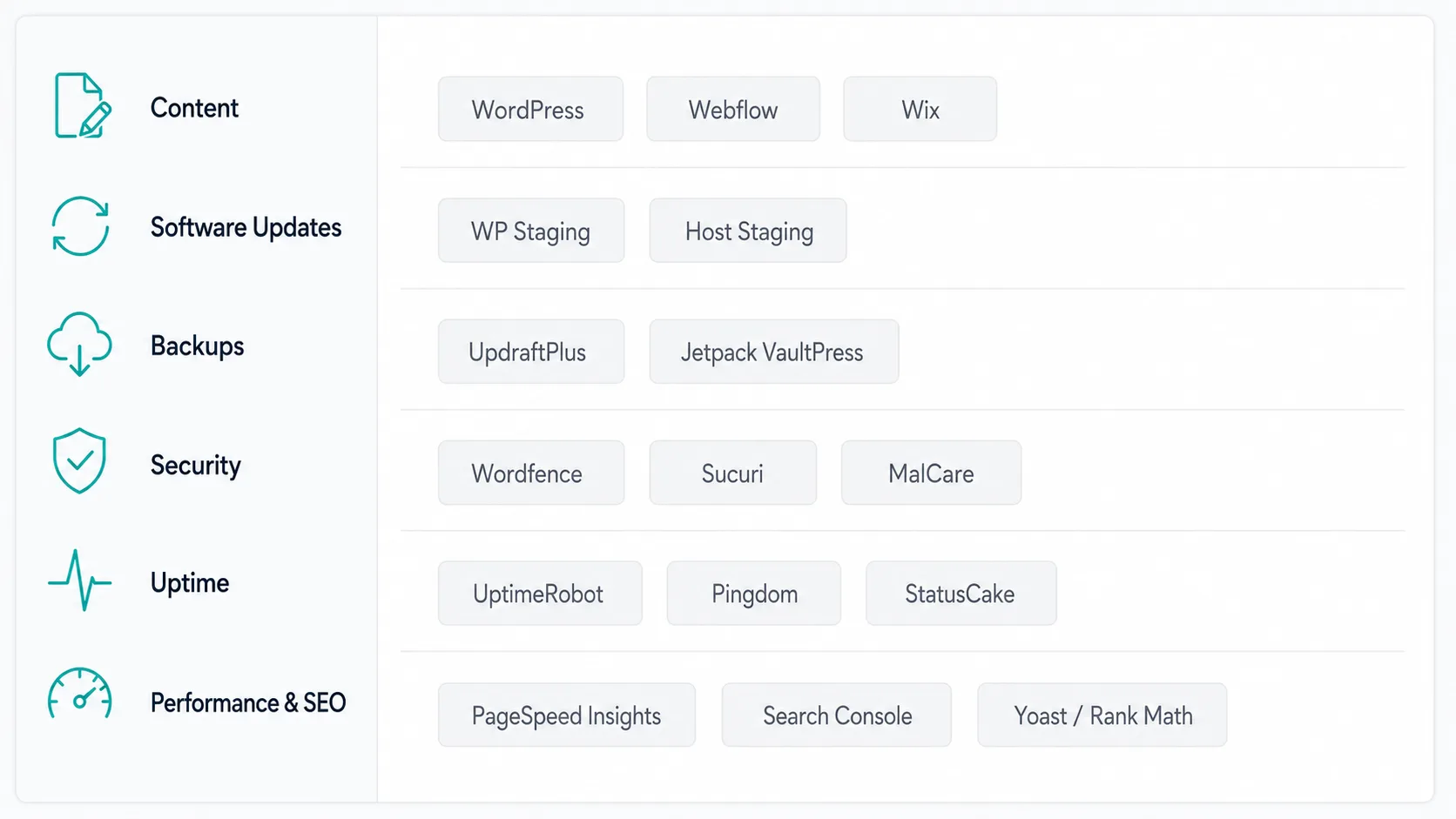
A real tool stack exists for every one of the 6 categories above, and most of it has a genuinely useful free tier. The table below is a starting point, not an exhaustive list.
| Category | What to look for | Examples |
|---|---|---|
| Content management | A CMS with scheduled publishing and a broken-link checker. | WordPress, Webflow, Wix, plus a link-checker plugin or app. |
| Software updates | A staging environment separate from the live site. | WP Staging, host-provided staging tools, platform-native staging. |
| Backups | Automated, off-server storage, with a restore option you can test. | UpdraftPlus, Jetpack VaultPress, host-native daily backups. |
| Security monitoring | Continuous scanning, not a manual check. | Wordfence, Sucuri, MalCare. |
| Uptime monitoring | Checks every few minutes with instant alerts. | UptimeRobot, Pingdom, StatusCake. |
| Performance and SEO | A speed test tool plus a search-visibility tracker. | Google PageSpeed Insights, Google Search Console, Yoast or Rank Math. |
Free tiers cover a genuinely usable baseline for a small site in every one of these categories. Paid tiers mostly buy back time: automated reporting, more frequent checks, and support for managing several sites from one dashboard instead of logging into each one separately.
The practical limit of a free stack is not features, it is attention. Free tools still need someone to open them, read the alert, and act on it. A security scanner that flags malware at 2am is only useful if someone checks it before Monday. That is the real tradeoff between doing it yourself and paying for a plan. The tools exist for free either way. What differs is whether a reliable person is checking them on the schedule the site needs.
How Often Each Task Should Actually Happen
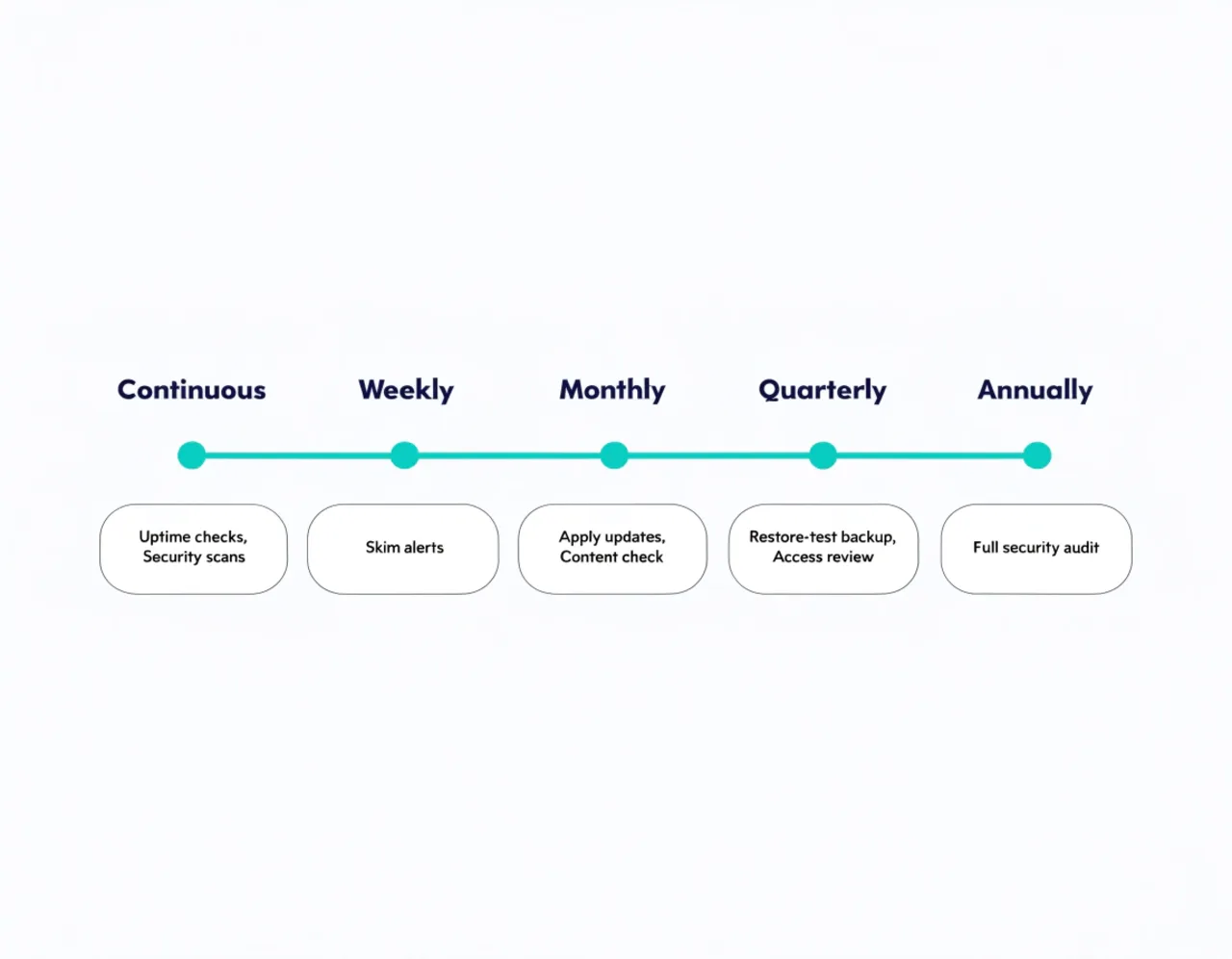
One reason DIY website management quietly falls apart is that nobody set a real schedule for it. "I'll check on it when I get a chance" is not a schedule, and it is why updates pile up and backups go untested. A realistic cadence for a small business site looks like this.
| Frequency | Tasks |
|---|---|
| Continuous (automated) | Uptime checks, security scanning, off-server backups. |
| Weekly | Skim uptime and security alerts, confirm nothing is sitting unread. |
| Monthly | Apply and test software updates, content accuracy check, broken-link check. |
| Quarterly | Restore-test a backup, review who has login access, full performance check. |
| Annually | Full security audit, review whether the current tool stack still fits the site. |
For a small business site handled properly across all 6 categories, this typically adds up to somewhere around 2 to 4 hours a month once the initial setup is done. That estimate moves fast in the wrong direction once updates or backups have already been skipped for a while. Fixing a problem that has been sitting unaddressed always takes longer than preventing it.
Professional, Online, and DIY Website Management: What the Terms Actually Mean
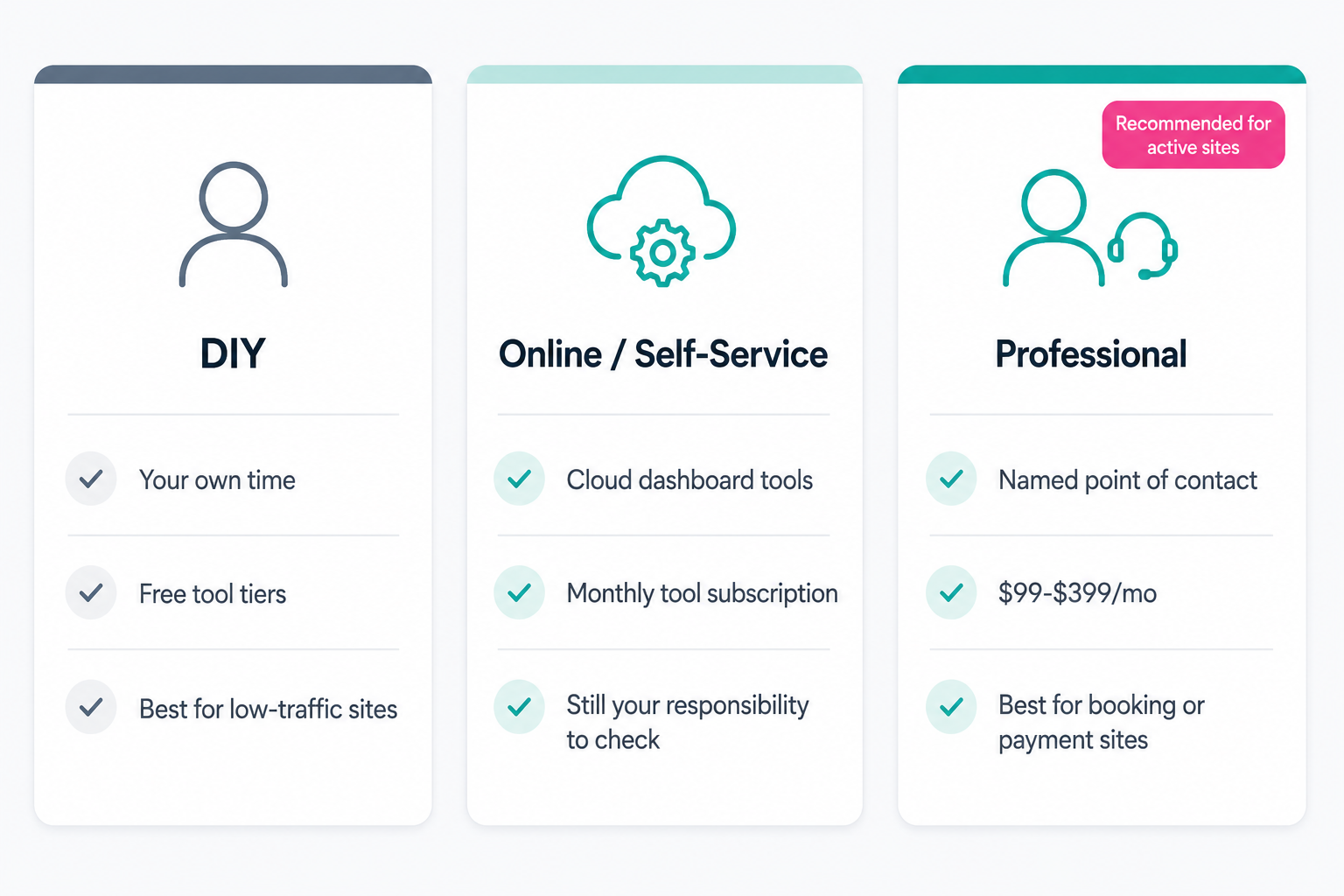
Professional website management and professional web management both describe the same thing: a person or company doing this work on your behalf, under a paid plan. It usually comes with a named point of contact and a defined response time. Pro website management is shorthand for the same service, not a different tier of it. Someone searching pro website management or professional web management is looking for the same paid plan, just typed faster.
Online website management gets used two different ways, and it is worth knowing which one a given page means. Sometimes it describes a cloud-based dashboard you use to manage your own site yourself, the DIY tool stack above. Other times it just means a management service delivered remotely, which describes almost every paid plan today regardless of where the company is based. The word "online" alone does not tell you which one you are looking at. The rest of the page usually does.
None of these labels change the underlying 6 categories. What changes is who is doing the work and how it is billed: nobody (DIY, your own time), a tool subscription (online, self-service), or a paid plan with a person behind it (professional).
None of the 3 is objectively correct. DIY genuinely serves a small, low-traffic site well, provided its owner has the time and does not mind the occasional Saturday spent on updates. A site that takes bookings, processes payments, or is the primary way customers find and contact the business carries a higher cost for the same mistakes. That is usually where the case for a paid plan gets stronger, regardless of site size.
Signs DIY Website Management Has Stopped Working
Doing it yourself is a completely reasonable choice for a smaller site, especially early on. A few patterns reliably signal that it has stopped being the right choice.
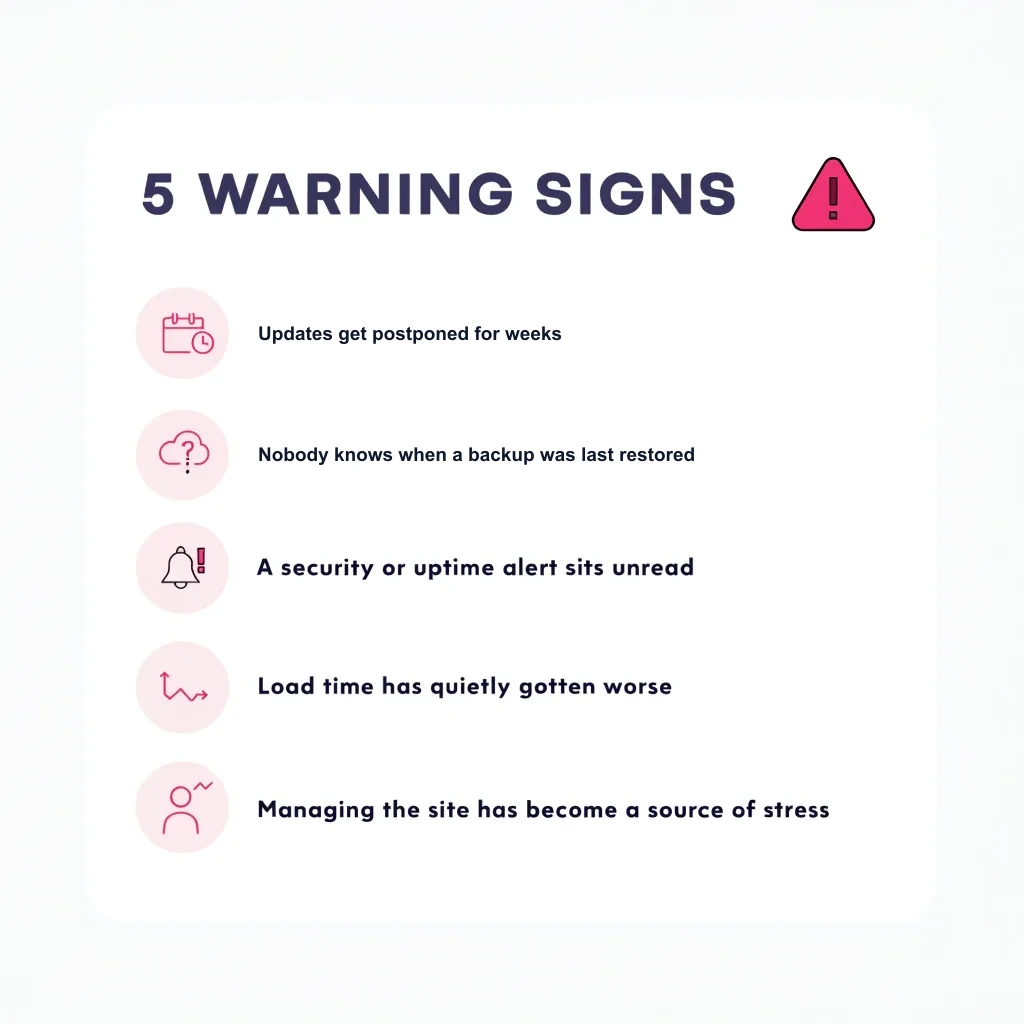
- Updates get postponed for weeks because there is never a good time to test them first.
- Nobody can say with confidence when the last backup was actually restored, only when one was most recently taken.
- A security or uptime alert arrives and sits unread for more than a day because nobody is specifically responsible for acting on it.
- The site's load time has quietly gotten worse over months and nobody flagged it before a visitor or a ranking drop did.
- Managing the site has become a recurring source of stress rather than a routine task. That usually means it is competing with time the business needs elsewhere.
Any one of these on its own is not a crisis. Two or more together usually mean the 6 categories above are not actually being covered consistently anymore, whatever the calendar reminder says.
Website Management vs SEO vs Marketing: Where the Boundaries Are
These three get lumped together constantly, and the overlap is real, but they are not the same job. Website management is the technical and content upkeep covered in this guide: updates, backups, security, uptime, content accuracy, and performance. SEO is the work of improving how the site ranks and gets found, on-page optimization, keyword targeting, link building, technical crawlability. Marketing is broader still: paid ads, email, social, and everything that drives traffic toward the site in the first place.
The reason the boundary matters is accountability. A site can be perfectly managed, updated, secure, and fast, and still rank poorly because nobody is doing SEO work on top of it. The reverse is also true. Aggressive SEO and marketing spend poured into a slow or insecure site is money working against a foundation that is not solid. Performance and uptime specifically sit at the seam between management and SEO. A slow or unreliable site actively works against whatever SEO and marketing budget is being spent on top of it, covered in more depth below. For what that SEO work actually costs on top of management, see our SEO pricing breakdown.
Managing a New Site vs an Inherited One
Setting up management on a brand-new site is straightforward: pick the tool stack above for each category, set a real schedule, and start from a clean baseline. An inherited site, one someone else built and you are now responsible for, needs an audit first. That means a short technical review before doing anything else, covering:
- What software and plugins are actually installed.
- Whether any of them are abandoned or unsupported.
- Who currently has login access.
- When the last backup was taken and whether it has ever been restore-tested.
- Whether any known vulnerabilities are already sitting unpatched.
Skipping that audit and jumping straight into "managing" an inherited site means protecting a baseline that might already have problems in it. An audit-first approach catches those before they become the new manager's problem to explain later.
What It Costs to Hand This Off
Our own plans run $99 to $399 a month and cover all 6 categories above at every tier. What changes at higher tiers is response speed and how many hours of hands-on work are bundled in. A full breakdown of what a paid plan should include, and how to tell a real one from a vague one, is on our website management services guide.
WordPress specifically carries the most risk of the common platforms. It powers 40.7% of all websites according to W3Techs, which makes it the largest single target for the automated bots scanning for outdated plugins. If the site runs on WordPress, what a real WordPress care plan should include goes into more platform-specific detail, and our complete WordPress management guide covers all 6 categories applied to WordPress's plugin-layer risk specifically.
Why the Performance Category Cannot Be Skipped Long-Term
A site that was fast at launch does not stay fast on its own. Plugins accumulate, images pile up unoptimized, and caches fill without anyone clearing them. Google's own Core Web Vitals guidance rates Largest Contentful Paint under 2.5 seconds as good, and up to 4.0 seconds as needing improvement. Anything past that counts as poor, measured at the 75th percentile of real page loads. A site drifts through those bands gradually. Nobody sees an error message. What shows up instead is a slow decline in rankings and conversions, one that most site owners never trace back to the actual cause, because performance is the category most likely to be skipped when time is short. If the site runs WordPress specifically, our guide to speeding up a WordPress site covers the exact fixes for each of the drift sources below.
In practice, the drift usually comes from 3 sources compounding quietly:
- Image files added at full resolution instead of compressed.
- Plugins or apps installed for a one-time need and never removed.
- A cache that was never configured, or left on default settings that do not fit the site's actual traffic.
None of these show up as a broken page. They show up as a page that takes an extra second or two to load, exactly the range that separates a "good" Core Web Vitals score from one that "needs improvement."
How We Handle Website Management
Every plan starts with a full audit of the site as it currently exists, on whatever platform it runs. Known issues get fixed before ongoing monitoring begins. That way the plan protects a clean baseline, not a site with existing problems already sitting in it. Updates and content changes are tested wherever the platform supports staging. Critical security patches move inside a 48 hour SLA from release rather than waiting for a monthly cycle. Every month you get a plain-language report of what was updated, checked, and fixed. See our full maintenance and support plans for exact pricing and what each tier includes.
This applies across platforms, not just WordPress. On Hunter Premium Skylights' Wix site, a routine maintenance check found a real problem. The responsive layout was pushing key content, and the main call-to-action, out of position on smaller screens. We adjusted the Wix responsive settings and retested across desktop, tablet, and mobile before calling it done. That is a small fix. It is also exactly the kind of thing that goes unnoticed for months on a site nobody is actively checking, on any platform.
None of the 6 categories in this guide are complicated on their own. What makes website management fail in practice is not difficulty, it is consistency. A task skipped once rarely matters. The same task skipped for 6 months in a row usually does. That consistency can come from your own calendar or from a paid plan with someone else's name on it. Either way, the 6 categories above are the actual job.