WordPress maintenance is the ongoing work of keeping a live site secure, current, and running the way it did on launch day. That means core, theme and plugin updates, backups, security monitoring, and uptime checks, done on a schedule rather than whenever someone remembers. It is not a one-time setup task. A site maintained once and left alone starts accumulating risk the day after that setup finishes. Maintenance is one half of how to manage a WordPress website; the other half is the update, user and plugin discipline that keeps the site from needing rescue.
Some people search for the shorter version of this: WP maintenance or WP site maintenance. Same thing, just the common abbreviation for WordPress. Whether you maintain a WordPress website yourself or pay for a plan, the same core tasks apply either way.
What WordPress Maintenance Actually Includes
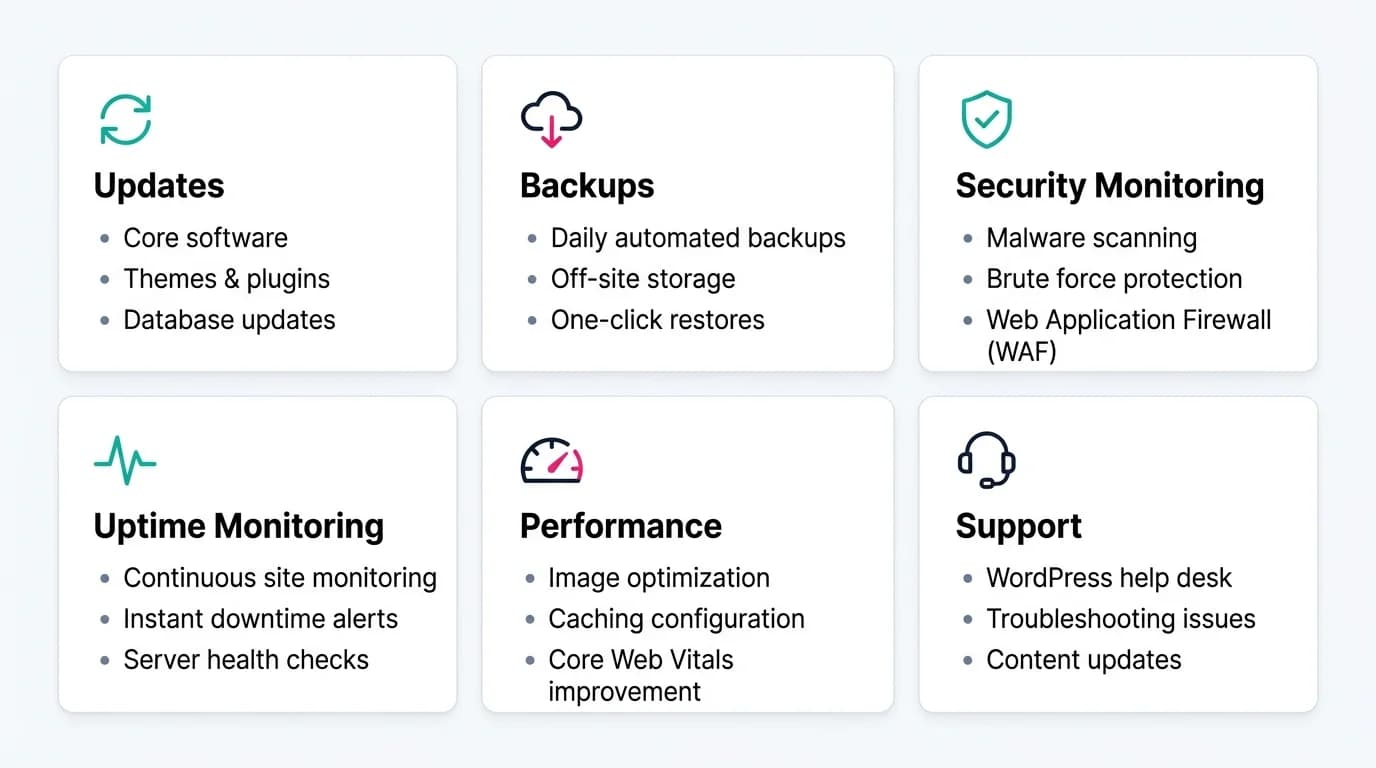
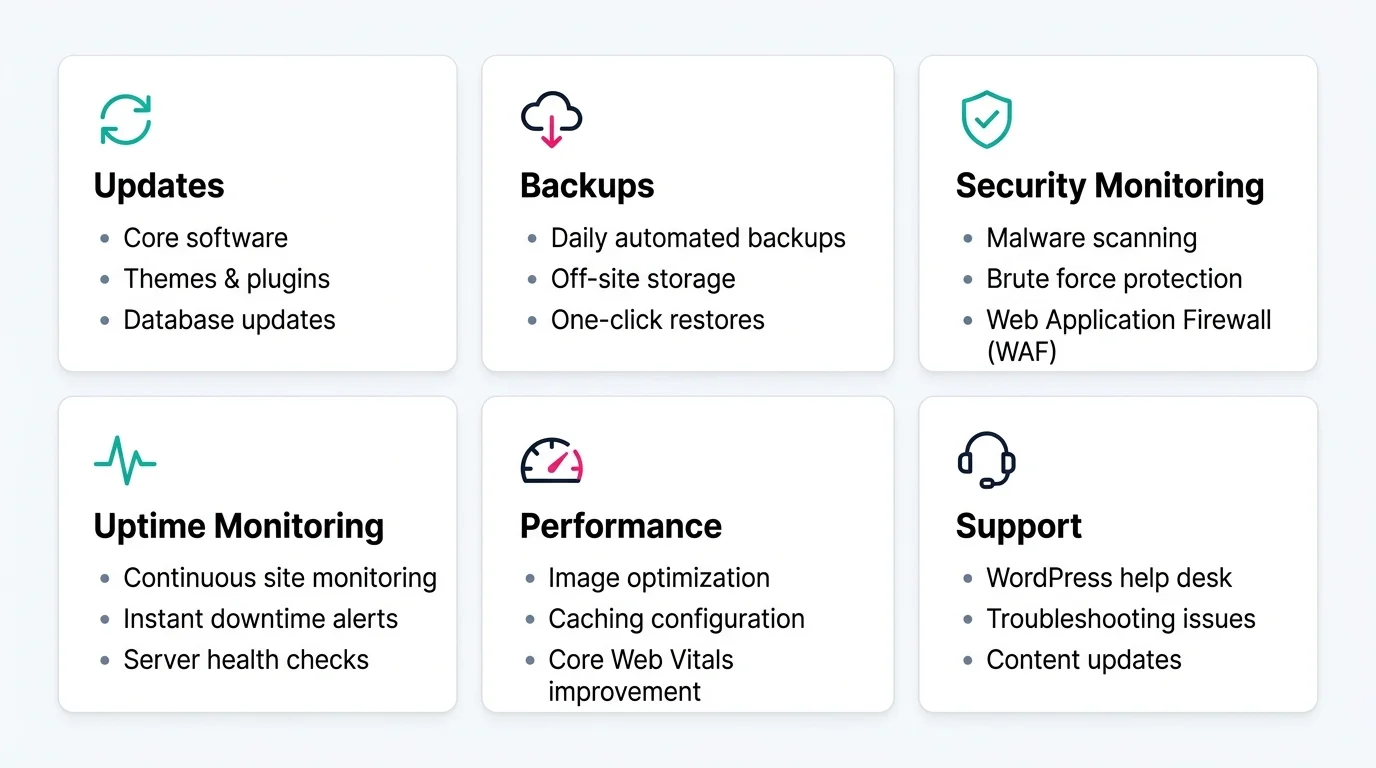
WordPress site maintenance gets described as four categories in most guides, and they stop there. The detail that actually matters is what happens inside each one.
- Updates. Core, theme and plugin versions applied on a schedule, tested before they touch the live site. A skipped update is not neutral. It is a known, publicly documented vulnerability sitting on your site until someone applies the patch, and 91% of 2025's disclosed WordPress vulnerabilities were in plugins, not core.
- Backups. Taken automatically, stored off the same server as the live site, and actually restore-tested. A backup nobody has tried restoring is a hope, not a safety net.
- Security monitoring. Continuous scanning for malware and known vulnerabilities, not a once-a-month check. Wordfence's own network data shows most attacks are automated bots scanning for outdated software, not a person targeting your business specifically. See what a real cleanup involves if that scanning ever finds something.
- Uptime monitoring. Something checking whether the site is actually up, and alerting a person the moment it is not. Finding out from a customer is the failure mode this exists to prevent.
Why Is WordPress Maintenance Important?
Because the cost of skipping it does not disappear, it just moves later and gets bigger. An unpatched plugin vulnerability sits quietly until it is exploited. A slow site loses visitors before they ever see what you are selling. A restore that has never been tested fails at the exact moment you need it to work. None of that shows up on day one. It shows up as a support ticket, a lost sale, or an emergency cleanup bill months later.
There is also a compounding effect. One skipped update becomes two. A cache nobody clears gets slower every week. Six months in, a site that would have taken an hour a month to maintain instead needs a full audit to figure out what state it is actually in.
WordPress Maintenance Mode Is Not the Same Thing
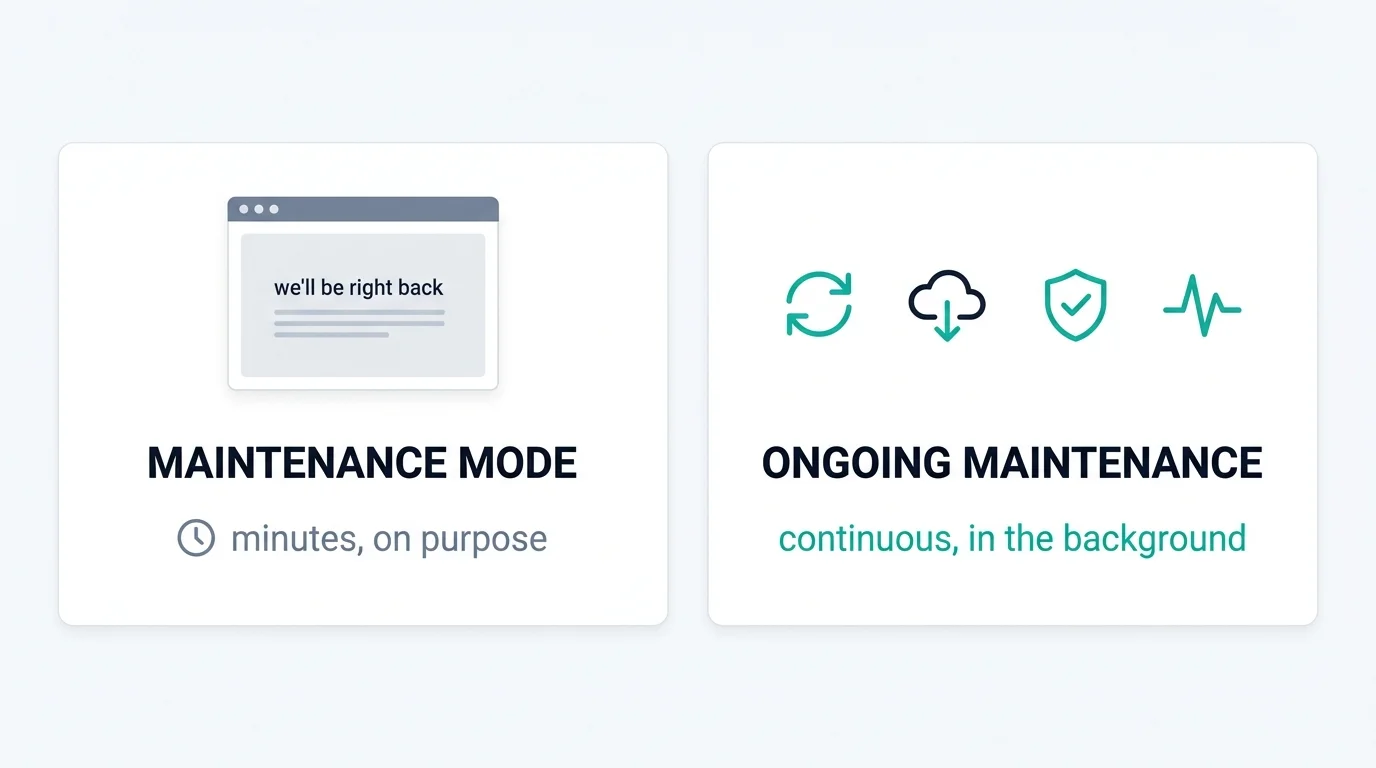
This is a genuinely common mix-up. A WordPress maintenance mode plugin puts up a temporary "we'll be right back" page for visitors while you make changes behind the scenes. It is a few minutes of downtime, on purpose, during an update or a redesign. Ongoing maintenance is the opposite: continuous work specifically aimed at the site never needing that kind of visible downtime in the first place.
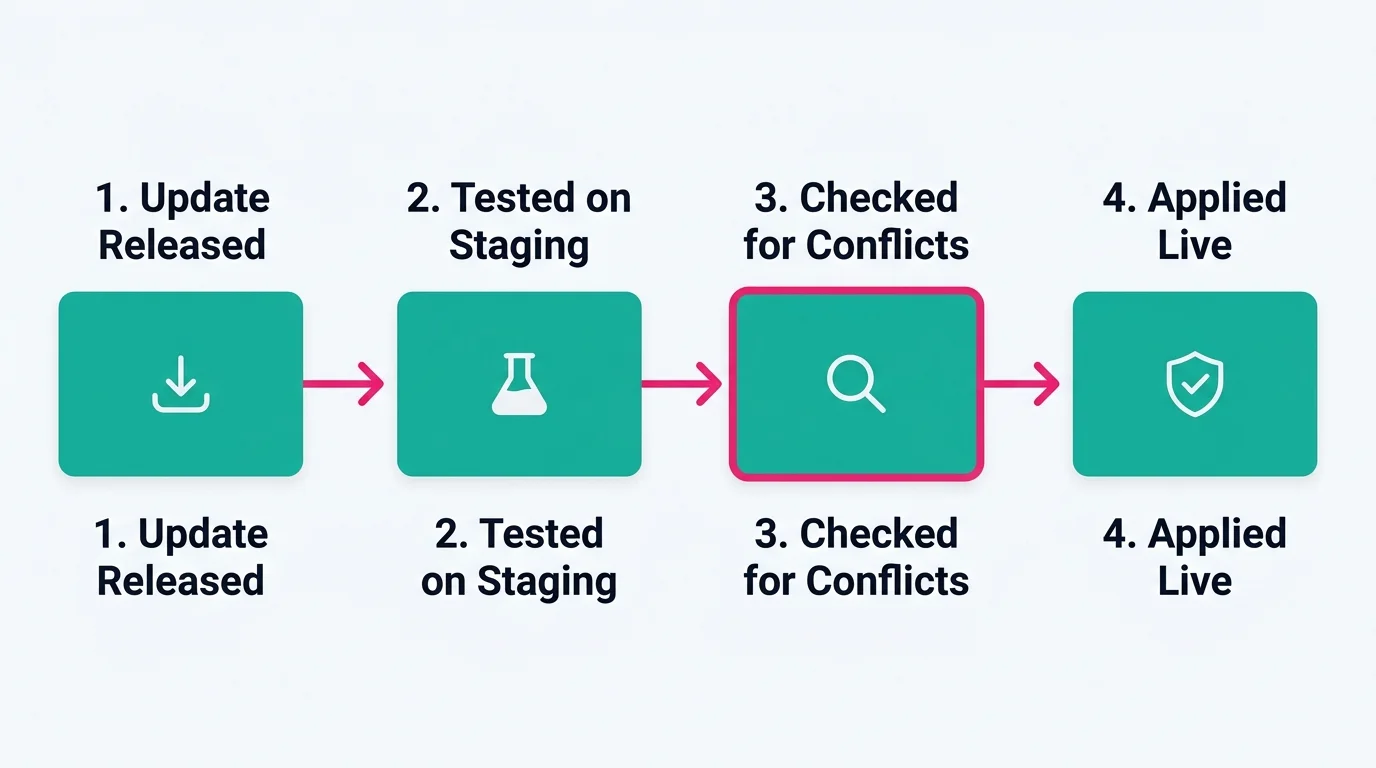
The two do connect in one place. A properly maintained site applies updates on a staging copy first, so the live site rarely needs a maintenance-mode page at all. Sites that skip staging often lean on maintenance mode more, because updates go straight to the live site and something occasionally breaks in the process.
Plugin Maintenance Is the Part Most Guides Skip
Plugin maintenance is harder than core WordPress maintenance, and most comparison pages do not explain why. Three real problems show up here specifically:
- Version conflicts. Two plugins that worked fine independently can break each other the moment one of them updates. This only shows up after the update, which is exactly why testing on staging first matters more for plugins than for core WordPress.
- Abandoned plugins. A plugin the developer stopped maintaining stops receiving security patches. WordPress.org's own plugin directory flags plugins untested against the current core version, but it does not stop you installing one. It keeps working right up until a vulnerability is found in it and never gets fixed, because there is nobody left to fix it.
- Silent incompatibility. A plugin can update cleanly and still stop working correctly with your theme or another plugin. It throws no error. Nothing alerts you. The bug just sits there until a visitor reports it.
This is why a real maintenance process checks plugin health specifically, not just whether version numbers are current. A plugin can be fully updated and still be the least stable part of a site.
How Often Should You Actually Do This?
Routine updates on a monthly cycle, tested on staging first, is standard practice. Critical security patches should go out sooner, often within days of release, because the risk of a known unpatched vulnerability usually outweighs the risk of the update itself. Backups run automatically, typically daily to weekly. Security and uptime monitoring run continuously in the background, not on a fixed check-in schedule at all.
Can You Maintain Your Own WordPress Website?
Yes. You can maintain WordPress website updates and backups yourself, if you are comfortable applying updates, testing them somewhere before they go live, and actually checking that a backup restores correctly rather than assuming it does. The honest tradeoff is time and consistency. Maintenance tasks that get skipped during a busy month are exactly how sites end up running outdated plugin versions with known, published vulnerabilities.
A site that takes bookings, processes payments, or is how customers reach you carries more downside from a skipped update than a low-traffic personal site does. That is usually the deciding factor, not technical difficulty on its own.
What WordPress Maintenance Costs
Our own WordPress maintenance runs $99 to $399 a month across three tiers. The four core protections, updates, backups, security monitoring, and uptime checks, are the same at every tier. What changes at higher tiers is response speed, how many hours of hands-on work are bundled in, and extra coverage like SEO monitoring at the top tier.
The full breakdown of what is included at each price point is on our care plan pricing page, alongside a longer look at what a WordPress care plan should include for a single business site.
How We Run WordPress Maintenance
Every plan starts with a security baseline audit. Existing vulnerabilities and outdated plugins get documented and fixed before monitoring begins, so we are protecting a clean site, not one with known holes already in it. Updates go to a staging environment first. Core, theme and plugin updates apply on a monthly cycle there, get tested, then go live. Critical security patches move faster, inside a 48 hour SLA from release rather than waiting for the monthly cycle.
Malware scanning runs continuously using Wordfence or Malcare, depending on the site's setup. Two-factor authentication is enabled for admin and editor logins. It adds about 10 seconds to a login and closes off one of the most common ways an account gets taken over, since Microsoft's own security research found MFA blocks over 99.9% of automated account-compromise attacks. Security headers and file permissions get configured on onboarding and checked again every three months. Every month, you get a plain-language report of what was updated, what was checked, and what needed fixing.
A Real Plugin Conflict, Caught and Fixed
This is the exact scenario the version-conflict warning above describes, not a hypothetical. On David Baxter's speaker site, an Elementor and related-plugin update broke the layout on some sections, particularly on responsive views. We traced the conflict through Elementor's settings, the widget structure, and custom CSS, repaired the affected sections, and retested across all 3 screen sizes, desktop, tablet and mobile, before calling it done. That is what plugin maintenance actually looks like when it works: a real conflict, caught and fixed, on a real client site.
The broader process is covered in more depth on our security monitoring & updates page, including which scanners we use and how a confirmed compromise gets handled on a plan we manage.