Most WordPress sites are slow for the same four reasons: unoptimized images, no caching layer, a bloated theme or page builder, and hosting that was never designed for real traffic. Fix those four things in the right order and you can cut load time from six or eight seconds to under two. Everything after that, PHP updates, JavaScript cleanup, and layout stability, matters for Core Web Vitals scores, but those are refinements on a solid foundation, not the foundation itself. Speed is also the part of how to manage a WordPress website that decays fastest, because every plugin and image added after launch works against it.
Why Does a WordPress Site Get Slow?
WordPress itself is not inherently slow. The platform powers 40.7% of all websites, including high-traffic news publishers, large e-commerce stores, and enterprise platforms. The slowness comes from how WordPress is typically set up: shared hosting, a premium theme loaded with features nobody enabled, six or eight plugins doing overlapping jobs, and images uploaded straight from a camera at 4 MB each.
I see this combination on almost every site I audit. The same problems appear whether the site was built by the owner, a freelancer, or an agency. It is not a skill gap. It is that nobody made performance a priority when the site was first assembled.
The consequences are measurable, and Google publishes the bar. Core Web Vitals are a confirmed ranking signal, and the thresholds at web.dev/vitals put Largest Contentful Paint under 2.5 seconds. On the median desktop page, images are the single largest slice of page weight at roughly 37%, according to the 2025 HTTP Archive Web Almanac. That is where to start.
Check Your Scores Before You Change Anything
Run your site through Google PageSpeed Insights before touching a single setting. This matters for two reasons. First, it tells you where your specific problem actually is. Not every slow site has the same bottleneck. Second, you need a baseline so you can see whether each change helped. Changing six things at once and watching the score improve tells you nothing about which fix worked.
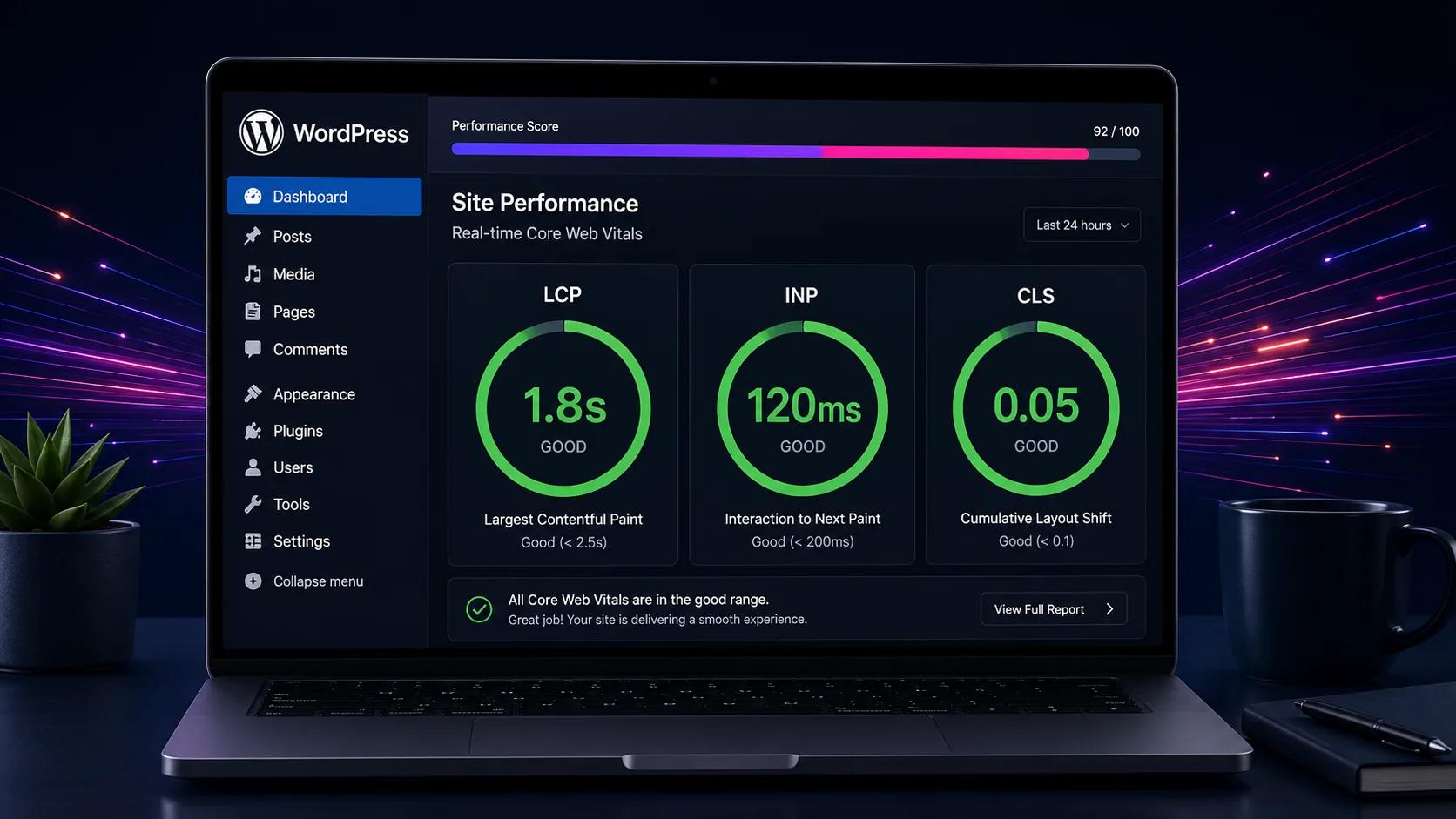
PageSpeed Insights shows your Core Web Vitals, the three metrics Google uses as a ranking signal. Google’s official thresholds, documented at web.dev/vitals: Largest Contentful Paint (LCP) under 2.5 seconds, Interaction to Next Paint (INP) under 200 milliseconds, and Cumulative Layout Shift (CLS) below 0.1. See our full Core Web Vitals guide for how each of the three is measured and how to fix them beyond WordPress specifically. All three must pass at the 75th percentile of your real visitors to get an overall “good” rating. Each metric is defined in full on Google’s own documentation linked above.
Only 48% of mobile websites pass all three thresholds, according to the 2025 Web Almanac performance chapter (July 2025 data). Google’s official good threshold for LCP remains under 2.5 seconds, but I aim for 2.0 seconds on client builds so slower devices and real-world networks still have margin. If your site is in the failing majority, every fix below is ordered by how much impact it typically delivers.
Start with Images: They Are the Biggest Slice of Your Page Weight
Images are the single biggest speed gain available on most WordPress sites. The median page weight sits at 2.86 MB on desktop and 2.56 MB on mobile (2025 HTTP Archive Web Almanac), and images are the largest single component of it, ahead of JavaScript and fonts. Most of it is avoidable.
Three things to fix right now:
- Convert to WebP or AVIF. WebP files are 25 to 35% smaller than JPEG, and WordPress has supported uploading and using WebP since version 5.8. AVIF goes further: typically smaller than WebP at equivalent quality, and browser support has reached 94.67%. ShortPixel and Imagify both handle batch conversion to either format from your existing media library.
- Resize before uploading. A hero image displayed at 1,200px wide does not need to be uploaded at 4,000px. Resize images to the dimensions they will actually display before they enter your media library. The server can’t undo the weight of an oversized original.
- Enable lazy loading for below-the-fold images only. WordPress has included native lazy loading since version 5.5, but many page builders disable it or apply it to the wrong images. Images below the visible screen on load should be lazy loaded. Your hero image should not be. More on this in the LCP section below.
On the Carter Hearing rebuild we delivered, image optimization alone reduced the homepage weight from 4.2 MB to 840 KB. That dropped mobile LCP from 6.8 seconds to 2.4 seconds before we touched anything else. Images first, always.

How Caching Works and Which Plugin Actually Fits Your Setup
WordPress generates pages dynamically by default: every visitor triggers a database query, PHP processing, and HTML assembly from scratch. Caching saves the finished HTML so subsequent visitors get a pre-built page rather than triggering that whole process again. A properly cached WordPress page can serve in under 100 milliseconds even on modest hosting.
Which caching plugin to use depends on your server, not on reviews:
- WP Rocket ($59/year) is the standard choice for Apache and Nginx servers. It handles page caching, CSS and JavaScript minification, lazy loading, and database cleanup in one place. It is not free, but it eliminates hours of manual configuration. On Apache and Nginx, it is the best-performing single plugin available.
- LiteSpeed Cache (free) outperforms WP Rocket if your host runs a LiteSpeed server. Hostinger, NameHero, and A2 Hosting are common examples. It includes server-level caching that no plugin running on Apache can match. Free and genuinely excellent on the right stack.
- Perfmatters ($29.95/year) is not a caching plugin. It is a script manager: it disables JavaScript and CSS that specific pages do not need. Use it alongside a caching plugin, not instead of one. The combination produces better INP scores than either tool alone.
One important rule: install one caching plugin, not two. Running WP Rocket and LiteSpeed Cache simultaneously causes conflicts that are more damaging than having no cache at all.
Does a CDN Actually Help a Small Business Website?
Yes, and the gain is not marginal. A content delivery network stores copies of your static files, images, CSS, and JavaScript, on servers close to each visitor. Instead of every page load fetching assets from your server in one location, a visitor in London gets those files from a nearby CDN node. The further your visitors are from your origin server, the larger the response time gain.
Cloudflare’s free plan handles this well for most business websites. You point your domain’s nameservers at Cloudflare and it proxies traffic through its global network. On top of speed, the free tier includes DDoS protection, an SSL certificate, and basic bot filtering. Setup takes about 20 minutes and requires no code changes.
Even if your customers are all in one city, a CDN still reduces load on your origin server during traffic spikes and protects you from slow days when shared hosting neighbors are taxing the same server. It is a straightforward improvement with no downside on the free tier.
Update Your PHP Version (This Takes Five Minutes)
PHP is the language WordPress runs on, and the version your host uses makes a real difference. In Kinsta’s PHP benchmarks, PHP 8.4 handles roughly 7% more requests per second than PHP 7.4 on a standard WordPress site, and about 21% more on WooCommerce, and many older WordPress installs are still running 7.4. The update is a single dropdown in your hosting control panel. It is not a code change and it does not cost anything.
Before switching, confirm your theme and active plugins are compatible with PHP 8.x. Most reputable plugins have supported it for years. Old or abandoned plugins occasionally break. The Health Check & Troubleshooting plugin lets you test the new PHP version in a private preview mode without affecting live visitors until you are confident everything works.
If your plugins are not compatible with PHP 8.x, that is a separate problem worth fixing regardless of performance. Running end-of-life PHP versions is a security risk.
Clean Up Your Database (Ten Minutes, Ignored by Most Guides)
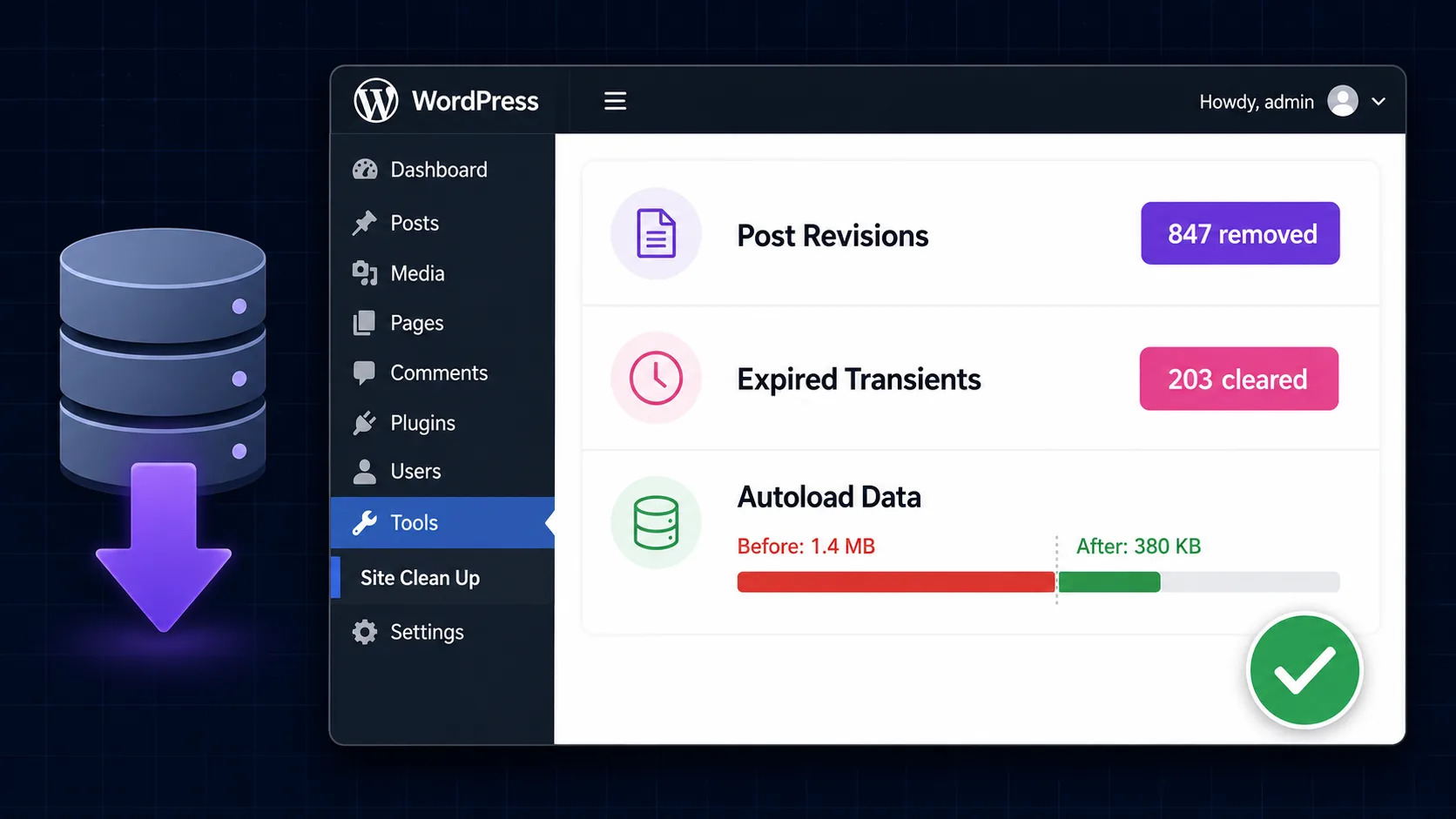
WordPress saves every revision of every post automatically, with no limit by default. A post edited forty times has forty revisions sitting in your database. Add spam comments, expired transients, orphaned metadata, and unused tables from deleted plugins, and a database that started at a few megabytes can balloon to hundreds. Every query WordPress runs to load a page searches through all of that extra weight.
WP-Optimize (free) cleans post revisions, spam comments, trashed items, and expired transients in one pass. Run it once manually to clear the backlog, then schedule a weekly automated cleanup. Keep the last three to five revisions per post and nothing more.
After cleaning, check your autoload data size. Autoloaded data above 800 KB means a plugin is storing excessive data that loads on every single page request, regardless of whether that page uses the plugin. WP-Optimize surfaces this in its database tab. Anything above that threshold is worth investigating before you add another caching layer on top of a bloated database.
How to Improve Your Largest Contentful Paint (LCP)
LCP measures how long the largest visible element on the screen takes to fully load. That is usually your hero image or main heading. Google’s good threshold is 2.5 seconds or faster at the 75th percentile, and only 58 to 62% of sites currently achieve a good score (CrUX, May 2026). I use 2.0 seconds as the working target because it leaves room for slower phones and weaker connections. The good news: LCP is usually fixable without touching your theme code.
The most common LCP problems on WordPress sites:
- The hero image is lazy loaded. Lazy loading is correct for images below the fold. It is the wrong setting for the hero, which needs to load immediately. In WP Rocket and LiteSpeed Cache, there is an “exclude from lazy load” setting where you can add your hero image filename.
- The hero image is not preloaded. Adding a preload hint tells the browser to fetch the hero image before it processes the rest of the HTML. WP Rocket has a preload section where you can add this without writing code. For custom themes, the tag is
<link rel="preload" as="image" href="/your-hero.webp">placed in the document head. - Time to First Byte (TTFB) is above 600 milliseconds. When the server itself is slow to respond, LCP suffers regardless of what else you optimize. TTFB above 600ms almost always means underpowered hosting. Managed WordPress hosts like Kinsta or WP Engine solve this. Shared plans on overcrowded servers do not.
How to Fix Interaction to Next Paint (INP)
INP replaced First Input Delay in March 2024 as Google’s measure of how responsive a page feels when users click buttons, tap menus, or interact with any element. The threshold is 200 milliseconds. Around 77% of sites now pass INP according to May 2026 CrUX data, which is real progress since the metric launched. LCP has taken over as the harder problem for most sites, but INP failures still show up often on JavaScript-heavy WordPress installs.
INP failures almost always come from too much JavaScript running on the main thread. When the browser is busy processing scripts, it cannot respond to input. The fixes:
- Use Perfmatters or Asset CleanUp to disable JavaScript on pages that do not need it. A contact page does not need your WooCommerce cart scripts. A blog post does not need your booking widget scripts.
- Defer non-critical scripts. WP Rocket has a “load JavaScript deferred” option that handles this automatically for most plugins.
- Remove plugins that inject scripts site-wide when they only serve one page. Sliders, pop-up builders, and live chat widgets are common offenders. Each one adds to the main thread work every visitor triggers, whether or not they ever interact with that feature.
In my experience, most INP failures on WordPress sites trace back to two or three plugins installed for a one-off purpose and never removed. A plugin audit (listing what is active, what is actually used on which pages, and what has a lighter alternative) typically clears 60 to 70% of INP issues without any code changes.
How to Stop Cumulative Layout Shift (CLS)
CLS measures how much the page jumps as it loads. When images push content down, fonts cause text to reflow, or ads load late and shift the layout, CLS rises. The target is below 0.1. Currently 75% of websites pass this threshold. It is the most achievable of the three Core Web Vitals and worth clearing first if you’re working through a long fix list.
The two most common CLS causes on WordPress sites:
- Images without explicit dimensions. When the browser does not know an image’s size before it loads, it cannot reserve space. Content shifts when the image arrives. WordPress has set width and height attributes on media library images automatically since version 5.5. Problems appear with images added through page builders or hardcoded in older themes.
- Web fonts loading late. When a Google Font loads after the page, the visible text shifts from the fallback system font to the web font. Setting
font-display: swapin your CSS reduces the jump. Better still, host Google Fonts locally with a plugin like OMGF. Local hosting eliminates the extra DNS lookup and the layout shift entirely, and it removes a third-party dependency that occasionally causes privacy compliance questions.
The Problem Most Speed Guides Skip: Your Theme May Be the Ceiling
Every speed guide covers the plugin and settings layer: caching, CDN, image compression. What almost none of them address is the layer underneath, which is the theme itself.
Page builders like Elementor and Divi are the most popular tools for building WordPress sites. They are also among the most consistent causes of poor Core Web Vitals. Both ship component libraries to every page whether or not that page uses them. Both add JavaScript to the main thread. Both make INP problems difficult to fully resolve without removing the builder itself.
I have optimized Elementor sites and moved them from 4-second LCP to 2.2-second LCP. That is real progress, and sometimes it is enough. But I have not seen an Elementor site reach the same scores as a custom-coded theme on equivalent hosting, because the builder’s baseline weight is a ceiling you cannot optimize through.
A custom WordPress theme built without a page builder starts lighter. There is no unused component library, no JavaScript loading on every page by default, no render-blocking styles tied to features the page never uses. My build targets of LCP under 2 seconds and INP under 150 milliseconds become genuinely achievable rather than aspirational.
If your site is on Elementor or Divi and you have already applied the fixes above without reaching passing scores, the honest answer is that the theme architecture is the remaining blocker. A rebuild on a clean custom theme produces better long-term results than another optimization plugin on top of a builder.
When Should You Call a Developer Instead?
Most of the fixes above can be handled by a non-technical site owner with the right plugins and hosting panel access. But some performance problems genuinely need a developer:
- TTFB above 1 second that persists after switching to better hosting. This usually means slow database queries inside the theme or plugin code that need to be diagnosed, not just cached over.
- Render-blocking scripts from a custom theme that cannot be deferred without breaking functionality.
- WooCommerce stores with large product catalogues where unindexed database queries are the bottleneck.
- Sites where a third-party script (a live chat widget, a booking system, a tag manager) is the INP failure point and cannot simply be removed or replaced.
Our SEO and speed optimization service starts with a full technical audit before any changes are made. We identify the actual bottleneck (hosting, theme, plugin, or database) and fix the root cause rather than adding more plugins that work around it. The result is measurable and durable rather than a temporary score improvement that degrades over time. If the audit shows the theme itself is the bottleneck, a full website redesign is the more honest answer, and we will say so rather than billing around the problem.
If you want an honest read on what is slowing your site down, the free consultation is a straightforward starting point. I will tell you directly whether this is something you can fix yourself or whether the architecture is the issue. If it turns out to be the latter, our prices are published, so you can see what a rebuild costs before you ask anyone for a number. If a plugin conflict has already taken the site down entirely rather than just slowing it, see how to fix the WordPress critical error for the recovery steps.