To move WordPress to a new host without losing data or downtime comes down to three things. A complete backup before you touch anything. A tested copy of the new site before you switch DNS. And a domain that keeps pointing at a working site the entire time. Done properly, most migrations take one to three hours of active work, plus a waiting period for DNS to catch up. Here is the exact process, three ways to do it, and what to check before you call it done.
This process goes by several names depending on how you search for it: move WordPress to a new host, migrate WordPress to a new host, transfer WordPress to another host, or just move WordPress to another host or server. All of them describe the same underlying work. The steps below apply whether you are moving to a new server on the same host, transferring to another host entirely, or migrating to a new domain at the same time, though that last case adds the SEO considerations covered separately below.
Is This a Host Move or a Domain Migration? The Distinction Matters
A same-domain host move, moving your files and database to a new server while wordpress-site.com stays wordpress-site.com, carries low SEO risk. Google still sees the same URLs; only the server behind them changed. Rankings typically hold and stabilise within days to two weeks of the switch. A domain change is a different, higher-risk event entirely, since every backlink still points at the old address and search engines have to re-associate that authority with a new one.
This guide covers the host move, keeping your domain exactly where it is. If you are also changing domains or restructuring URLs as part of this move, read the SEO migration checklist first. That risk profile is different enough to need its own process. For a full comparison of all four migration types, see website migration services explained.
What to Check Before Choosing the New Host
Most migration guides assume the new host is already picked. It is worth 20 minutes to confirm four things first, since a mismatch here causes problems that look like a broken migration when the real cause is the destination itself.
- PHP version support. Run your current PHP version against the new host's supported list before migrating. An older plugin stack running on a host that only offers the latest PHP release can break on arrival, not because anything transferred incorrectly. Independent PHP version benchmarks also show real performance gains from staying current, worth factoring into the choice.
- A real staging environment. Hosts that offer one-click staging let you rehearse the exact migration on a throwaway copy first, catching problems before they touch the live domain.
- Resource limits that match your site's actual load. A site with heavy WooCommerce traffic or a large media library needs memory and CPU allowances a basic shared plan often lacks, regardless of how the migration itself goes.
- Server location relative to your audience. Physical distance between the server and your visitors adds real latency. A US-based audience on a server in a different region pays a speed cost no amount of caching fully erases.
Before You Start: The Pre-Migration Checklist
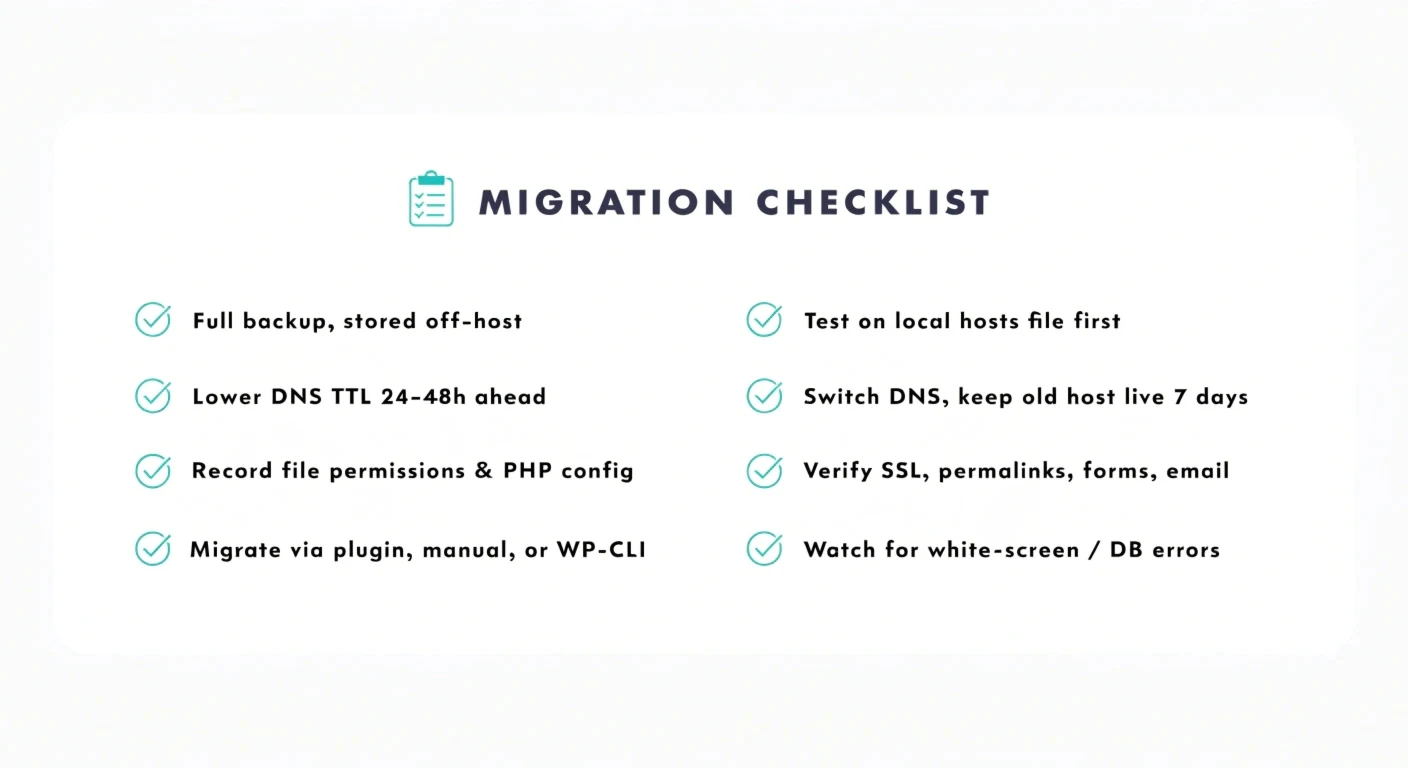
Take a full backup of your files and database before anything else, and store it somewhere other than the host you are leaving, following WordPress.org's own backup guidance of keeping 3 to 5 copies across different locations. If your domain's DNS records will change (even for a same-domain move, the nameservers or A record often does), lower the DNS TTL to 300 seconds 24 to 48 hours in advance. A short TTL means the eventual switch propagates faster, since DNS resolvers cache records for whatever TTL was set the last time they checked.
Record your current site's file permissions. WordPress expects 755 on directories and 644 on files. Note any custom PHP version, memory limit, or server configuration your site depends on too, so the new host can be configured to match before launch, not after something breaks.
Method 1: Migrating With a Plugin
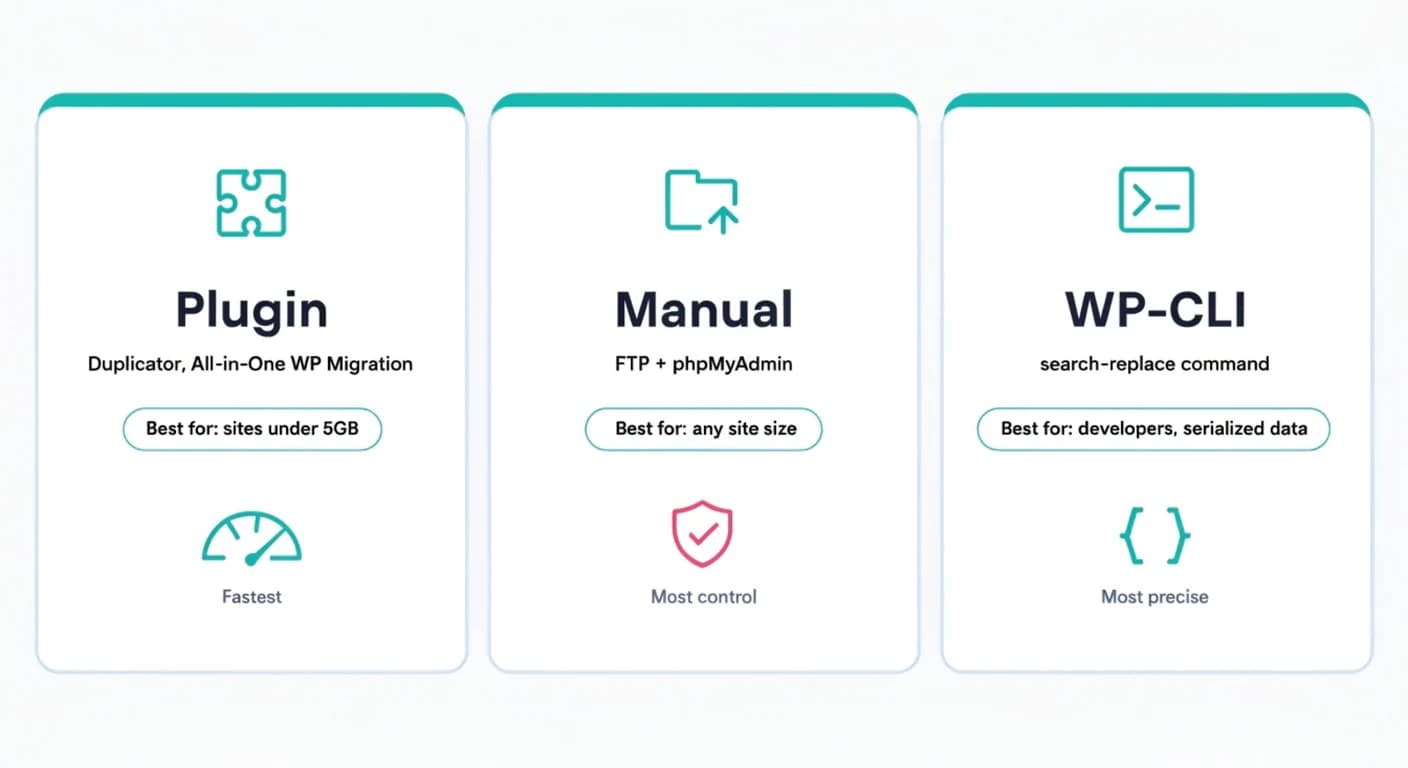
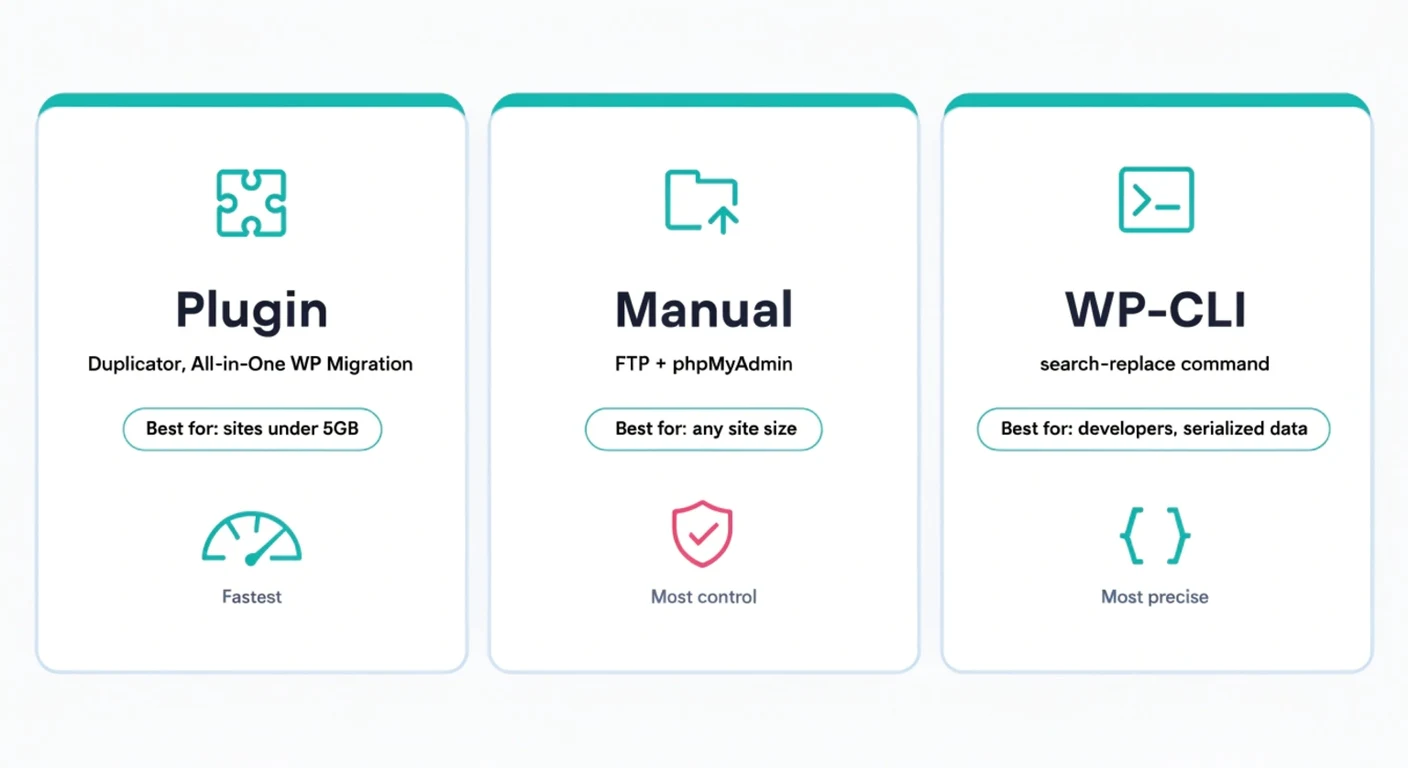
The plugin route is the fastest path for most sites under roughly 2 to 5 GB. Install a migration plugin like Duplicator or All-in-One WP Migration on the old site and build a package. That bundles your files and database into a single downloadable archive. Install WordPress fresh on the new host, then run the plugin's installer against that package. The installer handles the database import and file placement in one pass, which is what makes this method faster than doing each piece by hand.
Large sites and complex multisite installs can struggle with the single-package approach. Upload-size limits and server timeouts, on either the old or new host, commonly cause the package to fail mid-transfer. If that happens, the manual method below is the fallback, not a sign something is broken.
Method 2: Manual Migration via FTP and phpMyAdmin
Manual migration gives you full control and works regardless of site size, at the cost of more steps. Connect to the old host with an FTP client and download the complete site directory. Separately, export the database through phpMyAdmin as a SQL file. On the new host, create a fresh database and matching database user, then import the SQL file through its phpMyAdmin. Upload the site files to the new host's document root. Then update wp-config.php with the new host's database name, username, password, and host address. The old credentials will not connect to a database that no longer exists. Once the move is done, the site goes back into normal ongoing WordPress management: updates on a schedule, backups off-server, and uptime watched from somewhere other than the new host.
Method 3: WP-CLI for a Faster, Scriptable Migration
For developers comfortable with SSH, WP-CLI turns the search-and-replace step into one command instead of a plugin dependency. WordPress stores some data, widget settings and serialized arrays especially, in a format that a plain find-and-replace in phpMyAdmin will corrupt if the URL changes. WP-CLI's own search-replace command handles serialized data correctly:
wp search-replace 'oldhost.example.com' 'newhost.example.com' --all-tables --dry-runRun it with --dry-run first. That flag shows exactly what would change without touching the database, so you can confirm the replacement is correct before committing to it. Drop the flag to actually apply it once the dry run looks right.
Testing Your New Site Before Switching DNS
Do not find out your new host is broken by pointing your live domain at it. Edit your local computer's hosts file to map your domain directly to the new server's IP address, bypassing DNS entirely on your own machine. This lets you browse the fully working new site, click through pages, test forms, at the real domain, while everyone else still sees the old host. Once everything checks out, remove the hosts file entry and proceed with the actual DNS switch.
Updating DNS and Going Live
Point your domain's A record or nameservers at the new host. DNS propagation, the process of every resolver worldwide picking up the change, typically takes a few hours and can run up to 48 hours in rare cases. Most visitors see the new site within one to four hours if the TTL was lowered in advance. Keep the old hosting account active for at least seven days after the switch, so any visitor or bot still resolving the old DNS record does not hit a dead server. If you also changed anything about the site's structure during the move, double check against the post-launch checklist for what else needs verifying beyond DNS.
Post-Migration Checklist
- Confirm the site loads correctly over HTTPS, not just HTTP, and the SSL certificate is valid on the new host.
- Check that permalinks still resolve. A common post-migration break is every non-homepage URL returning a 404 until permalinks are re-saved.
- Verify forms, especially anything tied to a database table or a third-party API key, since some services whitelist by server IP.
- Submit the site in Search Console again if the host change affected sitemap accessibility.
- Check email. If your inbox was hosted with the old host, moving web hosting alone does not move email. MX records need their own plan.
Common Migration Problems and Fixes
A white screen after migration is almost always a PHP memory limit or a plugin conflict surfacing on the new server's configuration, not lost data. A database connection error means the credentials in wp-config.php do not match the new host's actual database name, user, or password, the single most common manual-migration mistake. Broken images or mixed-content warnings usually trace back to hardcoded old-domain URLs inside the database, which is exactly what wp search-replace exists to fix.
Multisite installs add one more failure point worth knowing in advance. The network's site table stores each subsite's URL separately from individual post content, so a domain or path change requires updating the `wp_blogs` and `wp_site` tables alongside the regular content tables. A search-replace run without the `--network` flag on a multisite install will miss these, leaving the network admin unable to find some subsites even though their content migrated correctly. A WordPress care plan that includes the migration as part of ongoing maintenance avoids most of this entirely, since the same team that handles updates handles the move.