
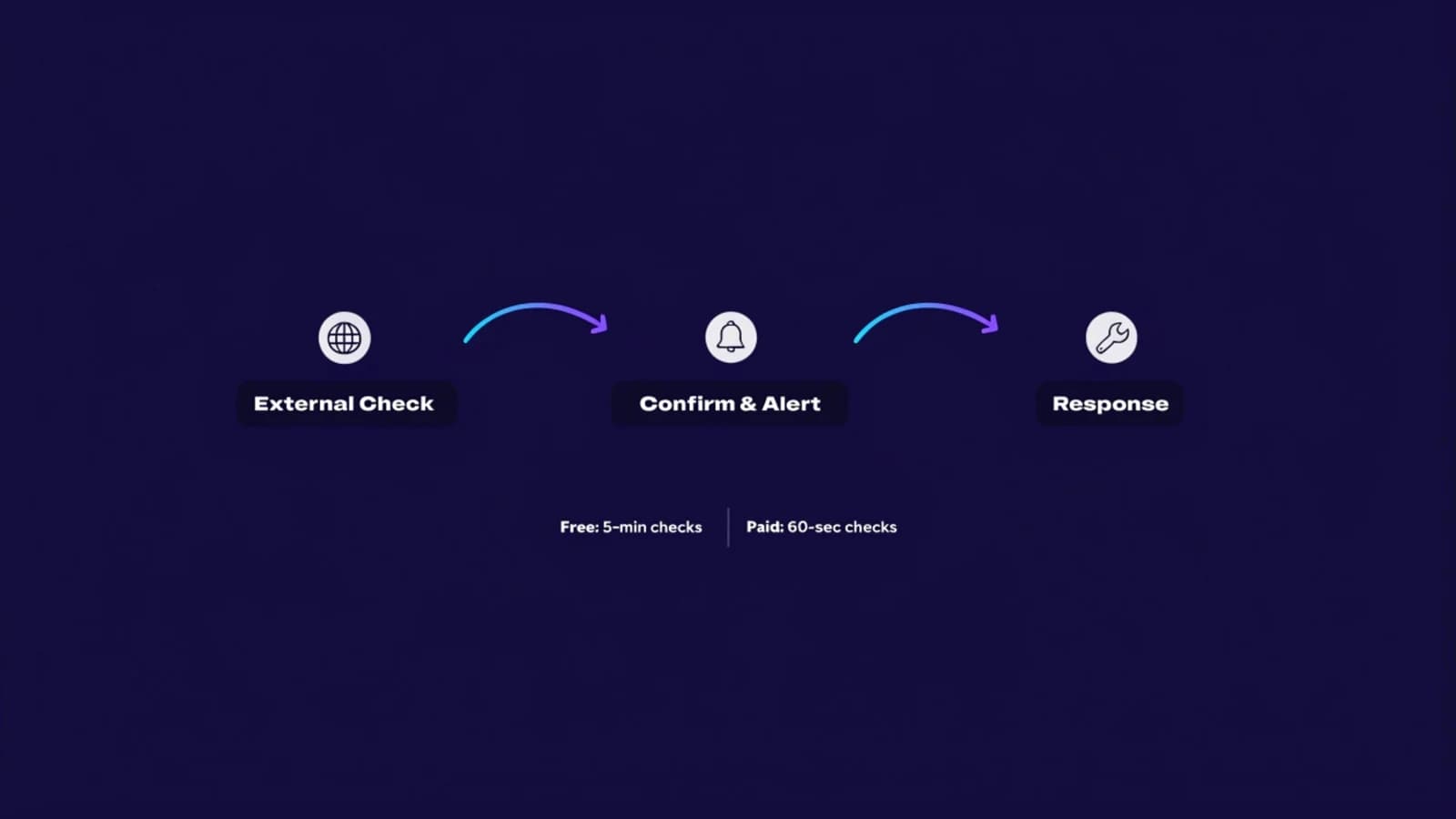
A website that goes down does not just lose a sale. It loses trust, and on a bad day it loses a client who assumes the whole business closed. WordPress uptime monitoring is the practice of catching that moment before a customer does. It is one of four things every real WordPress maintenance plan actually covers, alongside updates, backups and security. Here is what it actually involves, what the real tools cost, and how it fits into an ongoing plan instead of something bolted on after the first outage. Uptime is the third of the six recurring jobs in how to manage a WordPress website, and the one you are most likely to hear about from a customer first if nobody set it up.
People land here searching different things. Some want a quick website downtime checker to answer the "is my website down" question right now. Others want ongoing server monitoring software, or just want to check website status before assuming the worst. Whatever brought you here, the real answer is the same underlying practice below.
What WordPress Uptime Monitoring Actually Is
Uptime monitoring is an outside service pinging your site on a schedule, from a server that has nothing to do with your hosting, and alerting you the moment it stops responding. The outside part matters more than most guides on this topic explain. A plugin running inside WordPress cannot reliably tell you your site is down, because the plugin itself is part of what just went offline. If the server cannot serve PHP, it cannot run the plugin's own check either. Monitoring that lives entirely inside your install is watching from a location that disappears exactly when you need it most.
What Actually Causes WordPress Downtime
Per WPBeginner's troubleshooting guide, plugin and theme conflicts are the single most common cause. An update, a compatibility issue, or too many plugins running at once can trigger a fatal error. The rest of the usual list:
- Hosting outages. Your host's own infrastructure goes down. Check their status page before touching anything on your end.
- An expired domain or a DNS misconfiguration. The site is fine. Nobody can find it.
- A hacked or malware-infected site. Some hosts suspend an account automatically the moment they detect malware, which takes the site down as a side effect of the host protecting itself.
- A sudden traffic spike. Legitimate viral traffic and a bot attack look identical to an underpowered server, right up until you check the analytics.
- Outdated WordPress core or PHP. Old versions accumulate compatibility issues with newer plugins and themes over time.
External Monitoring vs. WordPress Plugins
External monitoring and a WordPress plugin are not the same defense. A plugin inside your dashboard is genuinely useful for an at-a-glance status view and internal diagnostics, like database query health or PHP error logs. That is detail an external service cannot see, since it only checks the front door. What a plugin cannot do is confirm the site is actually reachable from outside once WordPress itself has stopped responding. Treating a plugin as your only line of defense is the single most common gap in a self-managed setup.
What Uptime Monitoring Tools Actually Cost
Real pricing, not a vague "it depends," across the tools people actually search for:
- UptimeRobot. Free for up to 50 monitors checked every 5 minutes, with email alerts. The Pro plan starts at $7 a month and checks every 60 seconds instead.
- Jetpack. One of the few tools that bundles uptime monitoring into its free tier, which matters if you are already running Jetpack for other reasons and do not want a second dashboard.
- Pulsetic. A free-forever plan covering 10 monitors and 3 public status pages, useful if you want to share live status with clients rather than just get alerted yourself.
Free tiers check every 5 minutes and cover the basics well for a single small-business site. Paid tiers mainly buy faster check intervals and more monitoring locations. They also add multi-site management, useful for an agency watching several client sites from one account, which is closer to how we actually use these tools day to day.
What a Real Monitoring Workflow Actually Includes
Buying a monitoring tool and setting up a workflow around it are not the same thing. A workflow means someone looks at the alert, confirms it is a real outage and not a single dropped check, and acts within minutes, not whenever the inbox gets checked. That is what our own website maintenance and support plans build in from $99 a month. Uptime and booking-form checks sit alongside updates, backups and security monitoring, with a real person on the other end, not an alert nobody is watching.
A Real Example

Monitoring does not only catch a fully down site. On our Falcon Ridge Estates project, a routine update once left the site's cache behavior inconsistent. The site was technically up the entire time, so a basic uptime ping would have shown green. What it actually meant was that changes were not reflecting on the live site. The client was looking at a stale version without knowing it. We cleared the cache layers, reviewed the cache configuration, and retested both browser- and server-side caching until updated content served consistently again. That is the part uptime-only monitoring misses. It needs to sit inside a maintenance plan with someone actually watching, not a standalone alert.
How Much Should This Actually Cost
A free tool alone costs nothing and catches a fully down site within 5 minutes. That is genuinely enough for a low-traffic personal site. Once a WordPress site is actually generating leads or bookings, the real cost is not the monitoring tool. It is who responds to the alert and how fast. Our own pricing starts care plans at $99 a month, one of three fixed pricing tiers. Monitoring sits alongside updates, backups and security in every tier, not sold as a separate line item.