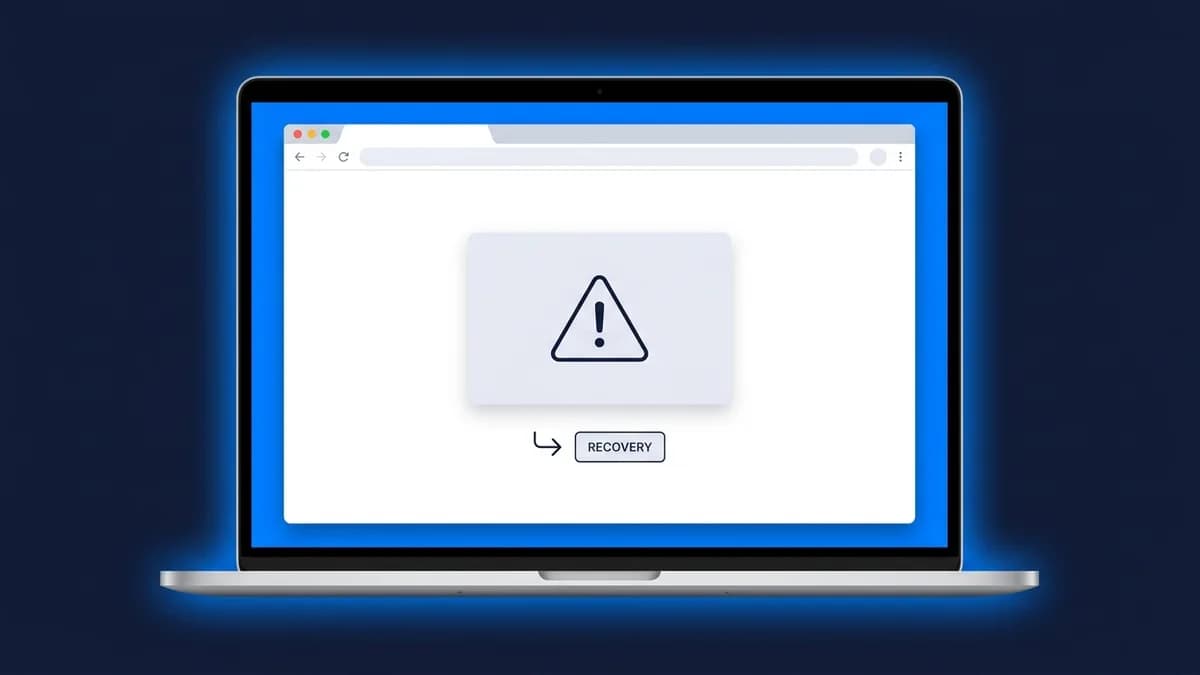
"There has been a critical error on this website" means a plugin, theme, or PHP problem crashed the site before the page could load. WordPress usually emails your admin address a Recovery Mode link. Click it to log in with everything disabled, find the cause, and fix it without touching code directly.
What This Error Actually Means
WordPress added this message in version 5.2 as a safety net. WordPress's own core team announcement confirms the exact mechanism: an email to the admin address with a link to Recovery Mode. Instead of showing a blank white screen, it catches the fatal PHP error, stops the page from crashing completely, and offers a way back in. The error itself is generic on purpose. The real cause is always something specific, and finding it is the whole job.
What Causes It
A malfunctioning plugin is the most common trigger, according to WPBeginner's troubleshooting guide, usually right after an update. Five other causes show up again and again:
- A theme with broken or incompatible code.
- An outdated PHP version that a plugin no longer supports.
- The PHP memory limit getting exceeded by a resource-heavy plugin.
- A corrupted database table or a wrong database password in wp-config.php.
- Malware, a hacked file, or incorrect file permissions.
We've hit this exact error on Banksia Breeze Projects, a renovation company's WordPress site we maintain. A plugin conflict took the dashboard down without warning. The admin email fired the Recovery Mode link within minutes, and disabling the conflicting plugin brought the site straight back. No data lost, no rebuild needed.
The Fastest Fix: Recovery Mode
Check your admin email inbox, including spam, for a message titled "Your Site is Experiencing a Technical Issue." Click the Recovery Mode link inside it. That logs you into wp-admin with every plugin and the active theme temporarily paused, so you can see which one is causing the crash and deactivate it directly.

No Recovery Email? Trigger It Manually
If the email never arrives, WordPress's own login screen has a manual entry point. WPBeginner confirms the exact URL: add ?action=entered_recovery_mode to your login page, so it reads yoursite.com/wp-login.php?action=entered_recovery_mode. That takes you straight to the recovery login screen, no email required.
Still Locked Out? Disable Plugins by FTP
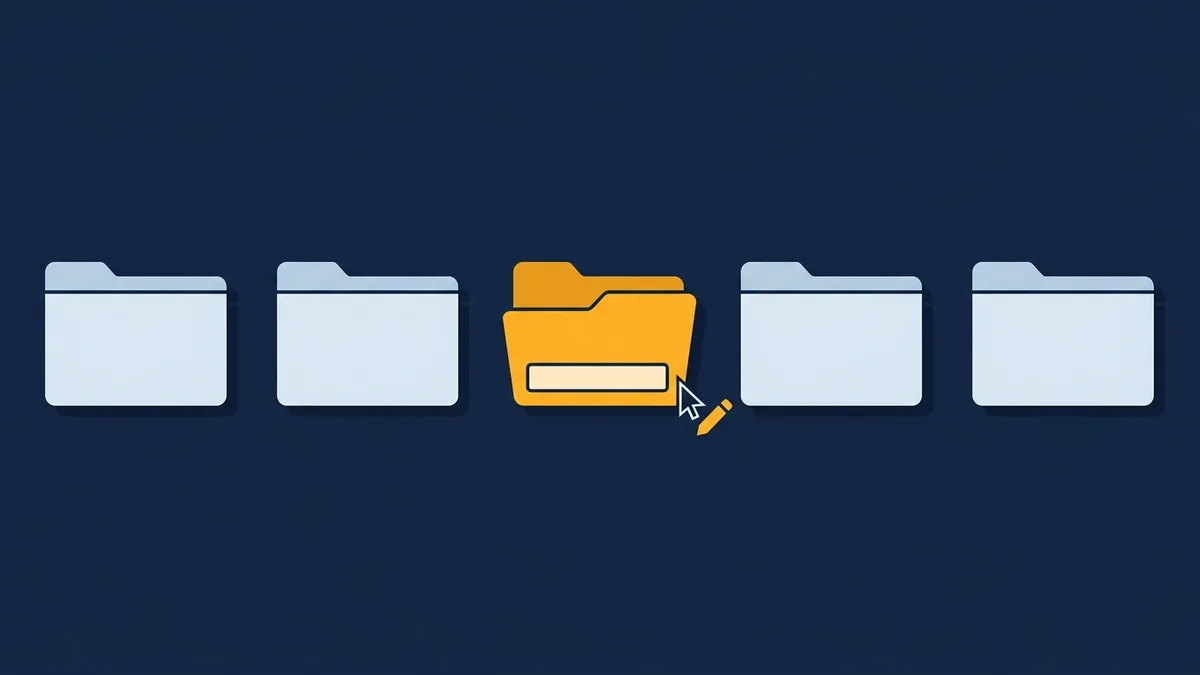
If wp-admin is unreachable entirely, connect by FTP or your host's file manager. Open wp-content/plugins and rename the folder to something like plugins-off. WordPress treats every plugin inside as deactivated the moment it can't find the folder. If the site loads again, rename the folder back and reactivate plugins one at a time until the error returns.
Switch to a Default Theme
A broken theme causes the same crash a broken plugin does. Rename your active theme's folder inside wp-content/themes the same way. WordPress falls back to a default theme automatically, which confirms or rules out the theme as the cause in one step.
Turn On Debugging to Find the Exact Cause
Open wp-config.php by FTP and set WP_DEBUG to true. Reload the site, then check wp-content/debug.log. It names the exact file, line, and plugin that triggered the fatal error, which turns guesswork into a direct fix. Turn WP_DEBUG back to false once you're done, since a debug log left running on a live site slows it down and can expose file paths to anyone who finds it.
Increase the PHP Memory Limit
Plugins like WooCommerce and Elementor can push memory use past a host's default limit, and PHP kills the script when it hits the ceiling. Raising the limit to 256 megabytes in wp-config.php or through your host's control panel often clears the error instantly, especially on stores and page-builder-heavy sites.
Check File Permissions and Core Files
Incorrect permissions on wp-content, wp-includes, or wp-admin can silently block WordPress from reading files it needs. Most hosts expect folders at 755 and files at 644. If permissions look correct, re-upload WordPress's core files fresh, since a partial update can leave core files corrupted or missing.
When to Restore From a Backup
If none of the above fixes it, or the cause turns out to be a hacked file, restoring the last clean backup is faster than continuing to debug. This only works if backups are actually running and actually tested. A backup nobody has restored from is a guess, not a safety net. Getting that right in advance is the second of the six jobs in how to manage a WordPress website, and it is the one that turns this whole page from an emergency into a ten-minute rollback.
Preventing It From Happening Again
Every cause above traces back to something changing on the site: an update, a new plugin, a resource spike, or a file nobody checked. Our website maintenance and support plans exist for exactly this: staged updates instead of automatic ones, tested backups, and uptime monitoring that catches a crash before a customer does. A critical error on a monitored, backed-up site is a five-minute rollback. On an unmonitored one, it's a support ticket you file after losing traffic. See what a real WordPress care plan should cost and include if you want the full pricing breakdown before deciding.