
The most common way WordPress sites get hacked or break is not through sophisticated attacks. It is through a plugin that was not updated for three months, a backup that was never configured, or a PHP version that the host quietly bumped while the site owner was not watching. Maintenance is the unsexy work that keeps a site alive.
WordPress powers over 43% of all websites on the internet, which makes it the single largest target for automated bots and vulnerability scanners. Because so many sites run the same plugins, when a security flaw is published, attackers can exploit thousands of sites within hours. The only reliable defence is keeping everything updated before those windows open.
This post covers what a real WordPress maintenance plan includes, how often each task needs to happen, what it costs whether you do it yourself or hire someone, and how to know when your site has moved beyond maintenance into needing a rebuild.
What Happens to a WordPress Site Without Maintenance
I want to be direct about the risk before covering the solution, because most site owners underestimate it until something breaks.
Security vulnerabilities compound fast
WordPress core gets security releases every four to six weeks. The plugin ecosystem is larger and more unpredictable. According to WPScan’s 2026 vulnerability database, over 97% of WordPress vulnerabilities come from plugins and themes, not WordPress core itself. A plugin you installed two years ago and forgot about can become a critical attack vector the moment a researcher publishes its flaw.
The attack timeline is fast. After a vulnerability is publicly disclosed, automated scanners typically begin probing for vulnerable sites within 24 to 48 hours. If your site is running the affected plugin version, it is at risk during that window. Updating immediately after a security release closes the window before most attacks begin.
Outdated plugins cause compatibility breaks
Security is not the only reason to update. PHP version changes, WordPress core updates, and WooCommerce releases regularly break plugins that have not been updated to match. A WooCommerce extension that worked perfectly in 2024 may produce a white screen or broken checkout after a major WordPress update if the developer has not released a compatible version.
Without a maintenance process that tests updates on staging before applying them to the live site, you are rolling the dice every time WordPress auto-updates.
Without backups, there is no recovery
A hacked site, a failed update, or a database corruption is recoverable if you have a recent clean backup. Without one, recovery means rebuilding from scratch. I have had clients come to us with a hacked site, no backup, and no idea when the infection started. In those cases, the only safe path is a full site rebuild because you cannot be certain the backup you eventually locate is also clean.
What WordPress Maintenance Actually Covers
A real maintenance plan is not just running updates. Here is what a complete plan covers, ordered by how often each task runs.
Daily tasks
- Automated backups: Full site backup including database, files, and uploads. Stored off-site, not on the same server as the site, and encrypted in transit and at rest. Retention of at least 30 days so you can recover from a corruption that was not noticed immediately.
- Uptime monitoring: Automated checks every 1 to 5 minutes that alert you within minutes if the site goes down. Without this, you may not know your site is offline until a customer emails you.
- Malware scanning: Automated file-level scans for malicious code injected into your PHP files, database, or .htaccess. Many infections are designed to be invisible to the site owner while running spam campaigns or redirect scripts on visitor browsers.
Weekly tasks
- Plugin, theme, and WordPress core updates: Review all available updates, test on a staging environment for compatibility issues, then apply to production. Automated updates without testing can break things. Manual updates without testing at all is just deferred risk.
- Security log review: Check for brute force login attempts, suspicious file changes, and unusual admin activity. A spike in failed login attempts is often a signal that your site has been targeted and you need to harden access controls.
- Broken link check: Broken internal and external links hurt both user experience and SEO. A weekly crawl catches these before Google flags them in Search Console.
Monthly tasks
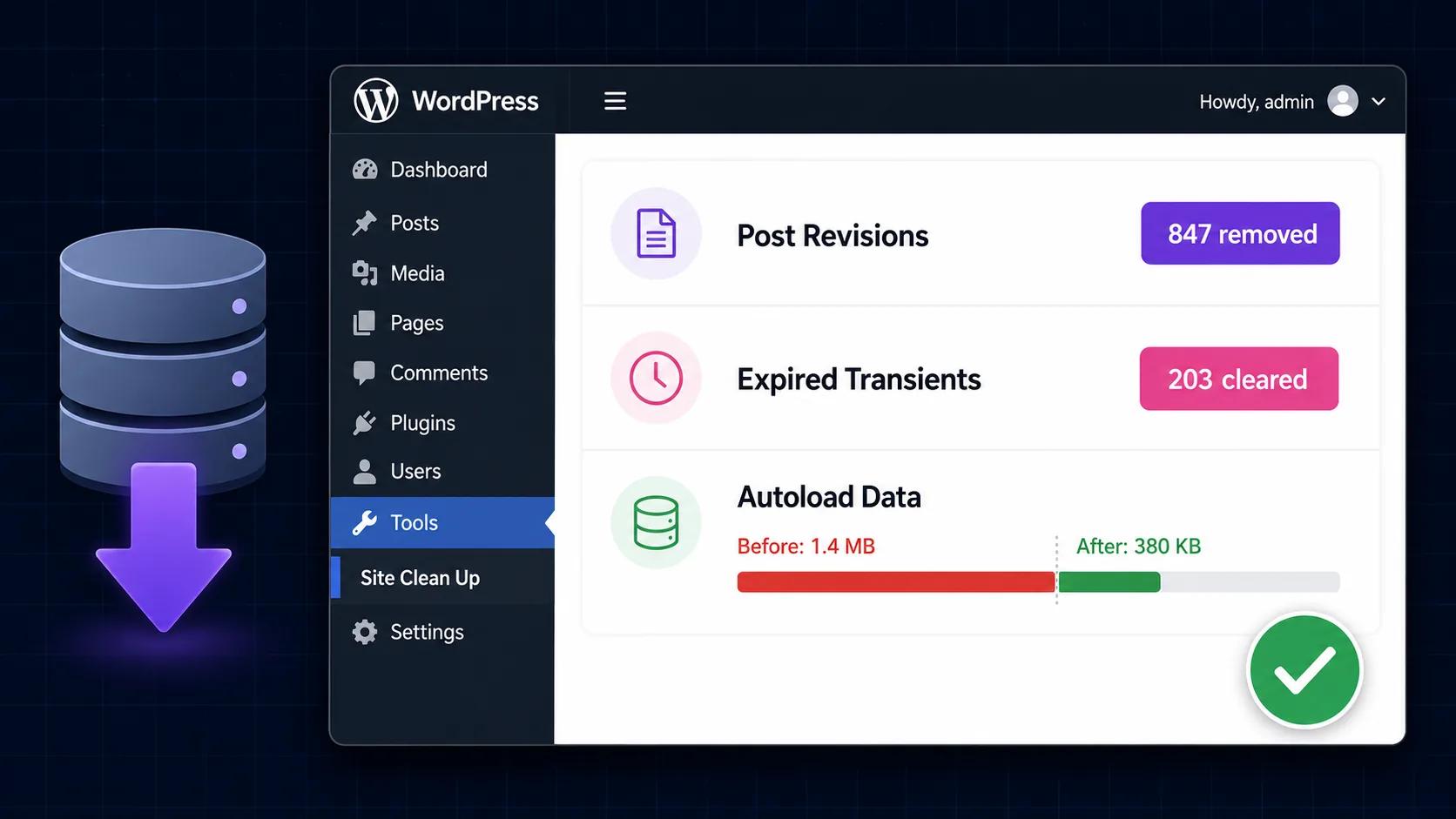
- Database optimization: WordPress databases accumulate post revisions, spam comments, transients, and orphaned metadata over time. A monthly cleanup keeps query times fast. Using a plugin like WP-Optimize or WP-Sweep, a typical site removes 5,000 to 50,000 unnecessary database rows per month.
- Performance check: Run PageSpeed Insights and check Core Web Vitals field data in Search Console. Catch performance regressions before they affect rankings. See our Core Web Vitals guide for the specific thresholds Google uses.
- User and access audit: Review admin users and remove accounts for team members who no longer need access. Dormant admin accounts with weak passwords are a common attack vector.
- SSL certificate check: Most certificates auto-renew, but confirmation is worth a minute. An expired SSL certificate blocks all traffic with a browser warning and crashes your rankings overnight.
Quarterly tasks
- PHP version review: WordPress recommends running PHP 8.2 or newer. Hosts will deprecate older versions on a schedule. Running an end-of-life PHP version means you are running software with known unpatched vulnerabilities.
- Full plugin audit: Review every active and inactive plugin. Remove anything that is no longer used, abandoned by its developer, or duplicates the function of another plugin. Inactive plugins still run code during WordPress load and still carry security risk.
- Staging environment test: Clone the production site to staging and run a full update cycle as a dry run. This catches any major compatibility issues before they touch the live site.
DIY WordPress Maintenance vs Hiring an Agency: Real Costs
The honest comparison is not just about money. It is about where you actually spend your time and what happens when something goes wrong.
DIY maintenance
If you are comfortable with WordPress and can commit the time, you can maintain your own site. The tooling is straightforward: UpdraftPlus or BlogVault for backups, Wordfence or Solid Security for malware scanning and login protection, WP-Optimize for database cleanup, and a staging plugin like WP Staging for safe update testing.
Time cost: a thorough DIY maintenance routine takes one to two hours per week. Annually, that is 50 to 100 hours of your time. At $75/hour of your time value, DIY maintenance costs $3,750 to $7,500 per year in opportunity cost, before any tool subscriptions (typically $150 to $400/year).
The real problem with DIY is response time during incidents. If your site gets hacked at 2am on a Friday, you are handling it. If a plugin update breaks your checkout on a Sunday, you are troubleshooting it. For most business owners, that risk is worth paying to transfer.
Agency maintenance plans
According to Codeable’s 2026 pricing research, WordPress maintenance plans run $30 to $300/month depending on what is included:
- $30 to $100/month: Automated updates, basic backups, uptime monitoring. Usually no staging testing and minimal human oversight.
- $100 to $300/month: Full update cycle with staging testing, off-site backups, malware scanning, and some included support hours for small edits or questions.
- $300+/month: Priority response SLA, dedicated development hours, SEO performance monitoring, and proactive recommendations.
Our website maintenance and support service includes staging-tested updates, daily off-site backups, security monitoring, and a response SLA for urgent issues. For most small business sites, $150 to $250/month covers full professional maintenance.
Why Plugins Are the Biggest Risk (and How to Reduce It)
Plugin security is the most important part of WordPress maintenance and the most commonly misunderstood. Site owners focus on keeping WordPress core updated because that is the most visible update prompt, but core vulnerabilities are rare. Plugin vulnerabilities are constant.
The plugins most likely to carry vulnerabilities are the ones most commonly installed: form builders, SEO plugins, page builders, WooCommerce extensions, and social media integrations. These are high-value targets because exploiting them gives attackers access to millions of sites simultaneously.
Practical steps to reduce plugin risk:
- Fewer plugins is always safer. Every plugin you add is a potential vulnerability surface. Before installing anything new, check if the function is already handled by something you have or if WordPress core has added it natively.
- Check plugin update frequency before installing. A plugin that has not been updated in 12 months is a risk. In the WordPress plugin directory, look at the “Last Updated” date and the “Tested up to” version. If it lags two or more major WordPress versions behind, find an alternative.
- Subscribe to WordPress security advisories. WPScan publishes a free vulnerability database. Following it means you know immediately when a plugin you run has a known issue, rather than waiting for an automated scan to catch the result.
Performance Maintenance: The Part Most Plans Skip
Most maintenance plans focus entirely on security and uptime. The better ones include performance as part of the routine. A site that is secure and online but slow enough to fail Core Web Vitals is still losing rankings and customers.
Performance maintenance includes a monthly PageSpeed check, catching image upload regressions (someone adds a 4 MB image through the CMS and nobody optimizes it), checking that caching is working correctly after updates (caching plugins sometimes deactivate silently after a WordPress version bump), and reviewing database query times as the site grows.
A site that scored 90+ on PageSpeed Insights two years ago may now score 60 if the content team has been uploading large images and the caching plugin was misconfigured after an update. Monthly performance checks catch this before Google does.
When Maintenance Is Not Enough
There are situations where a maintenance plan extends the life of a site that should actually be rebuilt. Knowing the difference saves money in the long run.
Signs your site needs a redesign rather than ongoing maintenance:
- It was built on a theme that is no longer actively developed and the design looks dated compared to competitors.
- Core Web Vitals consistently fail despite optimization efforts because the theme loads too much JavaScript or CSS.
- The CMS is difficult enough to use that the content team avoids updating the site, meaning the information visitors see is months out of date.
- It was originally built as a brochure site but you now need e-commerce, booking, or member functionality that requires a structural rebuild rather than a plugin addition.
- It loads in over four seconds on mobile despite caching and CDN, because the underlying template architecture is inefficient.
If you recognize two or more of those situations, a rebuild will cost less over three years than maintaining a site that is working against you. Our website redesign service is built around an SEO-safe migration process so you do not lose the rankings your current site has earned. We covered the technical approach in detail in our post on redesigning without losing rankings.
Building a WordPress Maintenance Habit That Actually Works
Whether you maintain your own site or work with an agency, the biggest failure mode is inconsistency. A maintenance plan that runs perfectly for six months and then stops because it was not built into a routine is as risky as no plan at all.
The practical recommendation: set a fixed day each month for your maintenance review. On that day, you check the update log, review the backup report, run a PageSpeed test, and look at the security log. The whole process takes 20 minutes if everything is working and the tools are configured correctly. If something flags, you deal with it before it becomes a crisis.
If you want a straightforward maintenance plan for a WordPress site on a clear monthly retainer with no long-term commitment, our maintenance and support service is worth a look. We work with business owners across the US, UK, and UAE who want a professional handling the routine so they can focus on running their business.