
Most guides covering Shopify and WooCommerce focus on moving from WooCommerce to Shopify. Shopify-to-WooCommerce migrations get less coverage, which means most site owners attempting this direction are flying without a detailed map.
The migration is worth doing for the right reasons: avoiding Shopify’s transaction fees at scale, building a content marketing strategy that WooCommerce handles better, or needing customization that requires Shopify Plus pricing. But the SEO risks are genuine if you do not handle the URL mapping correctly. This guide covers the exact process, including the specific Shopify URL patterns that cause ranking drops when you miss them.
Why People Move from Shopify to WooCommerce
Before getting into the how, it is worth being honest about the when. Migrating platforms is a significant project and not always the right move. The cases where it clearly makes sense:
- Transaction fees at scale: Shopify charges 0.5% to 2% per sale when you use a payment processor other than Shopify Payments. On a $500,000/year store, that is $2,500 to $10,000 per year in fees on top of your payment processor’s rates. WooCommerce charges no transaction fees of its own.
- Content marketing becoming the primary channel: Shopify’s blog is functional but limited. If your SEO strategy involves building topical authority through 30 to 100+ articles per year, WooCommerce on WordPress gives you far better content architecture.
- Complex product customization: Highly configurable products, rental products, B2B pricing tiers, and subscription models are easier and cheaper to implement on WooCommerce through its plugin ecosystem than on Shopify without a Plus subscription.
- International selling flexibility: WooCommerce gives more flexibility on multi-currency, tax handling, and regional pricing without the constraints of Shopify’s Markets feature.
If none of these apply to your situation, the migration overhead may not be worth it. See our comparison post on Shopify vs WooCommerce in 2026 for a full breakdown before committing to the move.
The SEO Risk: Shopify’s URL Structure Is the Core Problem
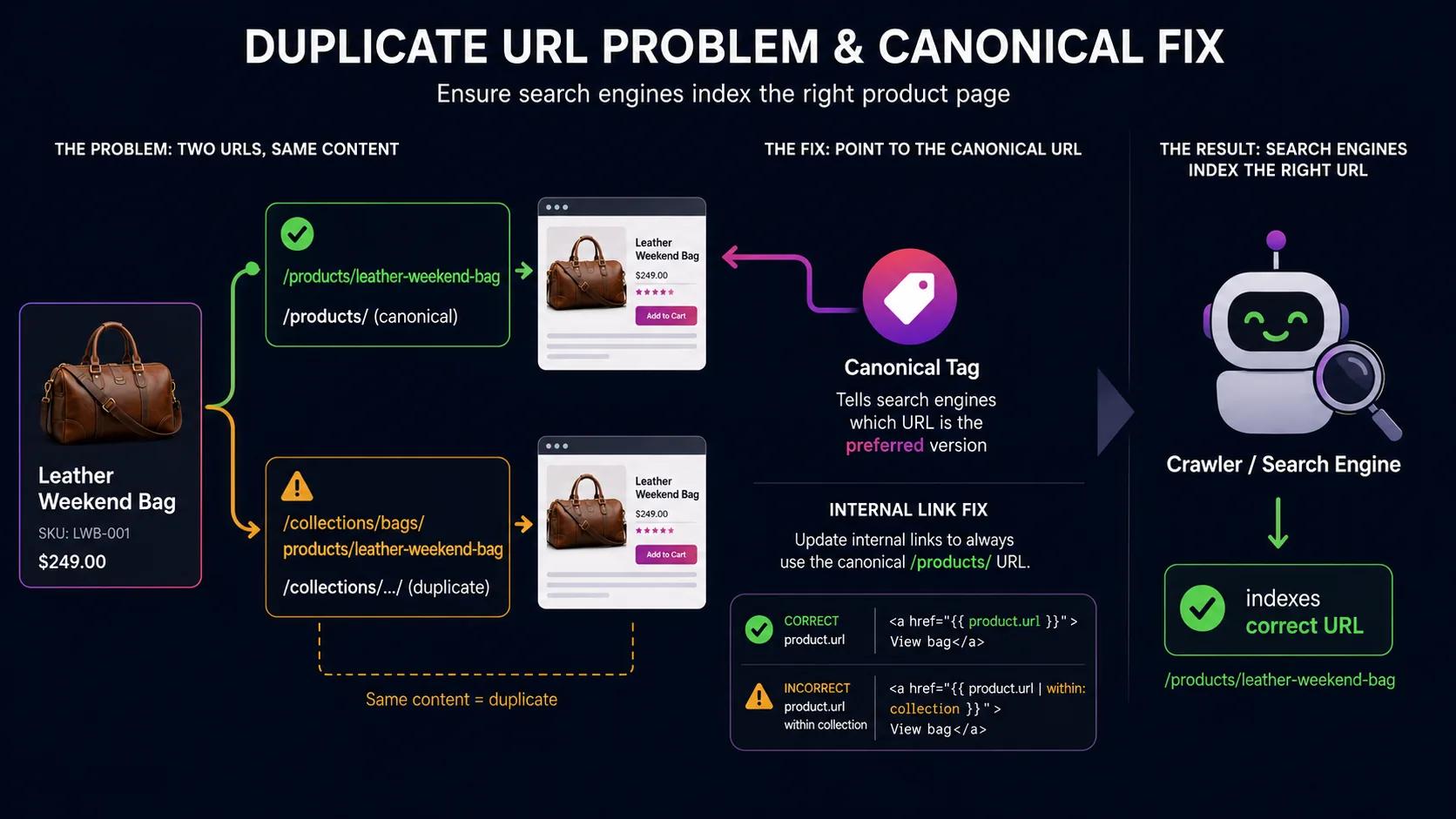
Every Shopify product URL follows the same pattern: yoursite.com/products/[product-handle]. Every collection is at yoursite.com/collections/[collection-handle]. Every blog post is at yoursite.com/blogs/[blog-name]/[post-handle]. These are hardcoded into Shopify and cannot be changed.
WooCommerce uses different URL patterns. By default, products sit at /product/[slug] and product categories at /product-category/[slug]. You can customize these in WordPress permalink settings, but no matter what you choose, they will not match Shopify’s paths without explicit redirects.
When you launch the WooCommerce site and Google crawls your old Shopify URLs, it finds 404s instead of 301 redirects. Every 404 on a previously ranked page is a ranking you lose. The fix is setting up 301 redirects that map every Shopify URL to its new WooCommerce equivalent before you switch DNS.
Step 1: Audit Your Shopify Site Before Anything Else
Document everything that is currently working. You cannot protect rankings you have not identified.
- Export all indexed URLs: Use Google Search Console’s Coverage report and Sitemaps report, or crawl the live Shopify site with a tool like Screaming Frog. Export every URL with an indexed or ranking status.
- Record current rankings: Pull a keyword performance report from Google Search Console for your top 30 to 50 pages. This is your before-state for comparing rankings after the migration.
- Export all metadata: For each page, document the current meta title and meta description. Shopify does not transfer these automatically. You must re-enter them manually in WooCommerce using an SEO plugin.
- Check backlinks: If any external sites link to specific Shopify product or collection URLs, those exact URLs need working redirects. Export your backlink profile from Search Console or Ahrefs before migrating.
Step 2: Export Your Shopify Data
Shopify provides a built-in CSV export for products, customers, and orders. Here is what exports cleanly and what requires extra work:
What exports well
- Products: Shopify’s Products export (Admin > Products > Export) produces a CSV with product names, descriptions, prices, SKUs, variants, and image URLs. WooCommerce can import this CSV with the built-in product importer, though you will need to map column names between Shopify and WooCommerce formats.
- Customer data: Shopify exports a CSV of customer names, emails, and addresses. Import this into WooCommerce using the Customer CSV Import plugin or WooCommerce’s built-in importer.
- Orders: Historical order data can be exported from Shopify. For order history migration, a plugin like Excelify or Matrixify handles the Shopify-to-WooCommerce format translation more reliably than manual CSV import.
What requires extra work
- Product images: Shopify images are hosted on Shopify’s CDN. The CSV export includes CDN URLs, not the image files themselves. You need to bulk download your product images before migration. Tools like Image Downloader browser extensions or a script using the Shopify Admin API can batch-download all product images.
- Blog posts: Shopify does not offer a standard blog export. You will need to either manually recreate posts in WordPress or use a migration plugin that connects to the Shopify API to pull blog content. LitExtension and Cart2Cart both handle Shopify blog migrations.
- Pages: Static pages (About, Contact, FAQ) must be manually recreated in WordPress. Export the content from Shopify first and use it as the source.
- Metafields: If you use Shopify metafields for custom product data, these require custom handling. There is no standard import path from Shopify metafields to WooCommerce custom fields.
Step 3: Set Up WooCommerce Before Importing
Build and configure the WooCommerce site on a staging domain before importing any content. This lets you test everything without affecting your live Shopify store.
- Choose quality managed WordPress hosting (Kinsta, WP Engine, or Cloudways). Do not use shared hosting for a store that does real volume.
- Install WordPress and WooCommerce. Configure your payment gateways, shipping zones, and tax settings before importing products.
- Install an SEO plugin (Rank Math recommended for WooCommerce). Configure the sitemap, canonical URL settings, and Organization schema before importing content.
- Choose and configure your WordPress theme. Build the design to match or improve on your Shopify look before importing product data so you can see how it renders during import testing.
- Set your WordPress permalink structure. A clean URL structure like
/%postname%/for blog posts and/product/%postname%/for products makes redirect mapping straightforward.
Step 4: Map Your Shopify URLs to WooCommerce URLs
This spreadsheet is the most important document in your migration. For every Shopify URL pattern, you need a corresponding WooCommerce URL. The common patterns:
| Shopify URL pattern | WooCommerce equivalent |
|---|---|
| /products/[handle] | /product/[slug] |
| /collections/[handle] | /product-category/[slug] |
| /collections/all | /shop/ |
| /blogs/news/[post-handle] | /blog/[slug]/ (or your blog base) |
| /pages/about | /about/ |
| /pages/contact | /contact/ |
| /cart | /cart/ |
| /checkout | /checkout/ |
Build a complete version of this table for your specific site. Every product, every collection, every blog post needs its own row. For large catalogues, you can use a spreadsheet formula to generate the WooCommerce URL from the Shopify URL pattern once you have the mapping rules established.
Step 5: Implement 301 Redirects in WordPress
After importing your content to WooCommerce and confirming the new URLs are correct, implement 301 redirects using the Redirection plugin (free, by John Godley). Install it, then import your redirect spreadsheet as a CSV.
Alternatively, add rewrite rules directly to your WordPress .htaccess file for bulk redirects. An .htaccess approach is faster for servers handling high redirect volumes:
# Redirect Shopify /products/ to WooCommerce /product/
RewriteRule ^products/(.*)$ /product/$1 [R=301,L]

# Redirect Shopify /collections/ to WooCommerce /product-category/
RewriteRule ^collections/(.*)$ /product-category/$1 [R=301,L]

# Redirect Shopify blog posts
RewriteRule ^blogs/news/(.*)$ /blog/$1 [R=301,L]
Test every redirect pattern before going live using a tool like httpstatus.io. Confirm each returns a 301 status, not a 302, and that there are no redirect chains (A redirects to B which redirects to C, which wastes link equity).
Step 6: Reinstall Your SEO Metadata
Using the metadata spreadsheet from Step 1, manually add the meta title and meta description to every product, category, page, and blog post in WooCommerce. Rank Math’s bulk editing mode makes this faster for large catalogues.
Also configure schema markup in Rank Math for all your major page types. Product schema should be automatic, but verify that your product pages show correct price, availability, and rating schema in Google’s Rich Results Test before launch. Our post on what is schema markup covers which schema types matter most for e-commerce.
Step 7: Launch and Monitor
When the WooCommerce staging site is fully tested and all redirects are confirmed working, execute the DNS switch. Update your domain to point to the new WordPress hosting server. The switch takes 24 to 48 hours to propagate globally.
Immediately after launch:
- Submit the new sitemap to Search Console: Replace your Shopify sitemap URL with the new WordPress sitemap URL (typically
yoursite.com/sitemap_index.xmlwith Rank Math). - Request indexing for priority pages: Use the URL Inspection tool in Search Console to manually request indexing for your highest-traffic product and category pages.
- Monitor the Coverage report daily: Any newly discovered 404s need immediate redirects added. A spike in 404 errors in the first week is normal. The critical thing is catching and redirecting them before Google drops the ranking.
- Watch for ranking fluctuations: Expect some volatility in the first two to four weeks as Google re-crawls and re-evaluates. If your redirects are correct and metadata is in place, rankings should stabilize back to pre-migration levels within four to six weeks.
The detailed post-launch monitoring process we use for all platform migrations is covered in our guide to redesigning without losing SEO rankings.
Is the Migration Worth Doing?
For most stores, the decision comes down to transaction fees and content strategy. If you are paying Shopify more than $200/month in transaction fees on non-Shopify Payments, the WooCommerce migration will pay for itself within the first year. If your content marketing strategy has outgrown Shopify’s blog, the migration gives you a significantly more capable content platform.
If neither of those is true, the migration adds risk and complexity without a clear payoff.
If you decide to proceed and want professional help managing the migration, our e-commerce development team handles Shopify-to-WooCommerce migrations with a full URL mapping audit, redirect implementation, and 30 days of post-launch monitoring included. Get in touch at websloop.com/contact for a free scoping call.